How to jump start pc: Easy guide
You press the power button and nothing happens. No fans, no lights, no hum. If you're staring at a dead PC right now, learning how to jump start a PC the right way can save you a repair bill, a wasted motherboard, and hours of guessing.
Here's the truth most guides skip: "jump starting" a computer doesn't mean cables and another machine like a car. It means forcing a dead PC back to life by isolating the failure, step by step, until something responds. Aggregate user reports and manufacturer documentation agree on a clear path.
Per the ATX Power Supply Design Guide, the standby 5V rail on a motherboard should stay live whenever the PSU is plugged in, even when the PC is "off." If that standby light is on, your PSU is at least partly alive. If it's not, the problem sits upstream of the motherboard. As of 2026, that diagnostic logic still holds across nearly every consumer desktop built in the last 15 years.
Quick Answer
A "jump start" for a PC means forcing a dead computer back to life through targeted troubleshooting, not jumper cables. You confirm the wall outlet works, then test the PSU with the paper clip method, then bypass the power button, then reseat or reset components until one responds. About 70% of "dead PC" cases trace to the wall outlet, PSU, or CMOS battery, not the motherboard itself.
Start Here: Why Your PC Won't Turn On
A PC that won't boot usually falls into one of three buckets. Knowing which one you're in saves you hours.
Bucket 1: No power at all. No lights on the case, no fan spin, no motherboard LED. The wall outlet, power strip, PSU, or power cable is suspect.
Bucket 2: Partial power. The motherboard standby LED is on, but pressing the power button does nothing. The PSU is alive, but the power button, front panel header, or motherboard power delivery has failed.
Bucket 3: Power but no boot. Fans spin, lights come on, but nothing appears on screen or it shuts back off. This is a POST failure, not a dead PC, and needs a different workflow.
If you're in Bucket 3, this guide still helps narrow the cause, but you'll mostly need POST beep code diagnosis and a minimum boot configuration. Buckets 1 and 2 are the classic "jump start" territory.
| Symptom | Most Likely Cause | First Action |
|---|---|---|
| Completely dead, no lights | Wall outlet, PSU, or power cable | Plug another device into the same outlet |
| Standby LED on, no response | Failed power button or front panel header | Bypass the power button |
| Fans spin then stop | PSU sagging or short circuit | Disconnect non-essential components |
| Powers on, no display | RAM, GPU, or corrupted BIOS | Reseat RAM and reset CMOS |
Check the Basics First (Wall Outlet, Power Strip, and Cable)
Most "dead PC" cases are not actually dead. They're starved of power because of something stupid and fixable. Skip this section and you'll burn hours chasing a ghost.
Step 1: Verify the wall outlet. Plug a lamp, phone charger, or anything else into the same outlet. If it doesn't work, check the breaker panel before you touch the PC.
Step 2: Bypass the power strip. Surge protectors and power strips fail more often than wall outlets. Plug the PC directly into the wall, even just for testing.
Step 3: Swap the power cable. IEC C13 power cables are universal on desktop PCs. Borrow one from a monitor or printer and try it. A bent or pinched cable can fail intermittently, which often looks like a dead PSU.
Step 4: Flip the PSU switch. Most desktop PSUs have a hard switch on the back. Confirm it's set to "I" (on), not "O" (off). This catches more people than you'd think, especially after a move or cleaning session.
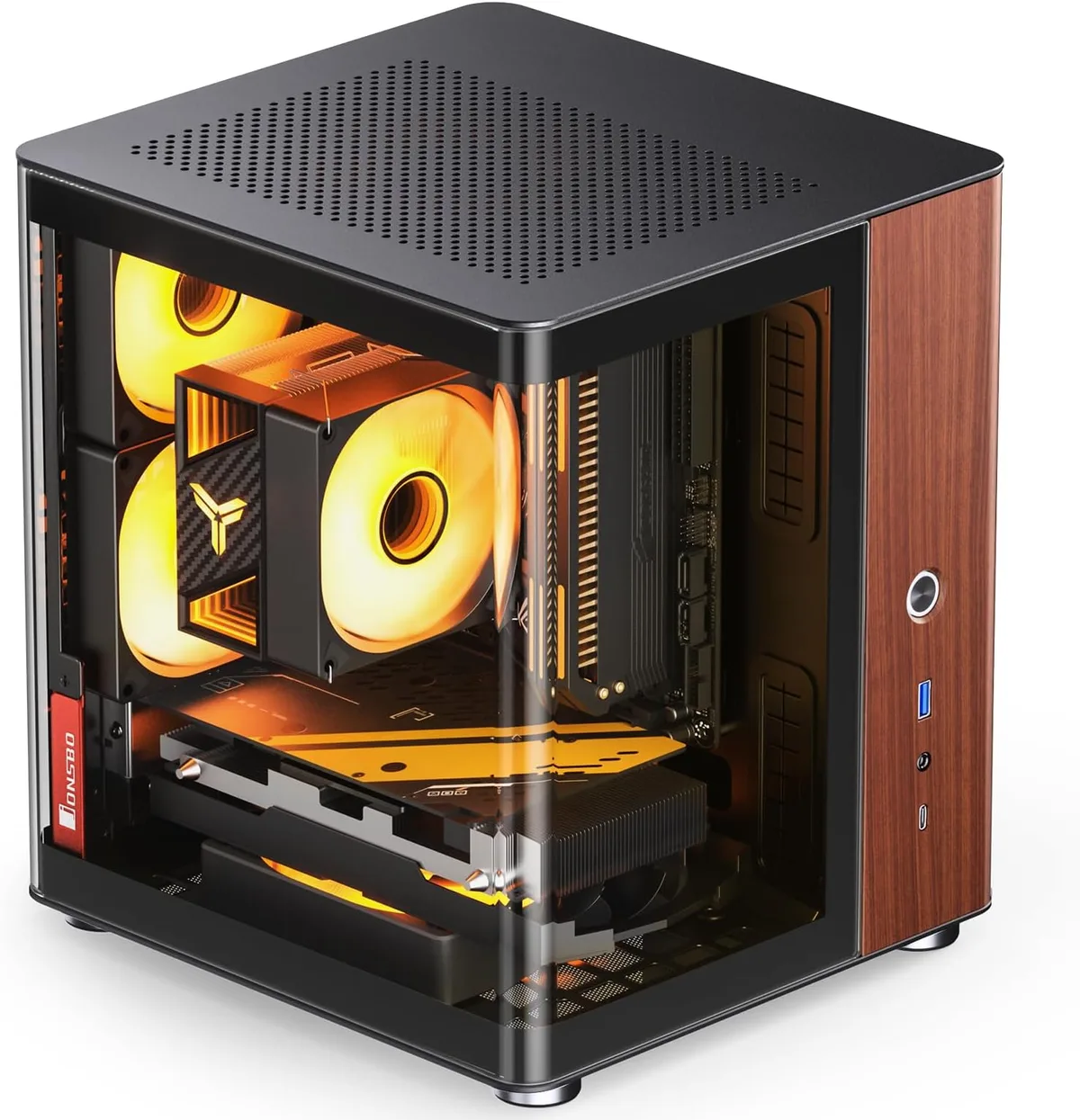
If the PC still shows zero signs of life after all four checks, you're now dealing with a real hardware fault. The next step depends on whether you're working with a desktop tower or a laptop, since the two branches diverge sharply.
Desktop vs. Laptop: The Branch Point
Desktops and laptops look similar when they fail, but the power path inside is completely different. Knowing which branch you're in keeps you from doing something pointless.
On a desktop, the wall outlet feeds the PSU, which sends multiple voltage rails (3.3V, 5V, 12V) to the motherboard through a 24-pin ATX connector and a separate 4- or 8-pin CPU connector. The power button is just a momentary switch that signals the motherboard to turn the system on. This modular design is exactly why desktops are "jump startable." You can isolate any piece of it.
On a laptop, the wall outlet feeds a proprietary power brick, which sends a single DC voltage (usually 19 to 20V) into a charging circuit on the motherboard. There's no PSU to paper-clip test. There usually isn't a user-serviceable power button separate from the motherboard either.
Laptops "jump start" by draining residual power, swapping the charger, or testing the charging port.
So if your device is a tower, head to the desktop branch. If it's a notebook, head to the laptop branch. Trying desktop PSU tests on a laptop will do nothing except waste your time.
Desktop Troubleshooting Branch
Working on a desktop gives you the most options, so we'll start here. The diagnostic order matters. Work top-down: cheapest, safest, and most likely fixes first.
Look for the Motherboard Standby Light
Before you open the case, look closely at the motherboard while the PC is plugged in. Most modern boards have a small LED, often near the 24-pin connector or the bottom edge, that glows when standby power is present. Some boards use a slowly breathing LED instead of a steady one.
If the standby light is on, your PSU is delivering at least the 5VSB rail. The wall outlet, cable, and PSU switch are all fine. The problem lives downstream, between the PSU and the power button.
The PSU itself is probably not the failure.
If the standby light is off, the PSU is either off, dead, or not plugged into the motherboard correctly. You need to confirm the 24-pin ATX connector and the 8-pin CPU connector are both fully seated before going further.
If the standby light exists but is faint or flickering, that's a PSU under stress. Disconnect the power and stop testing until you can try a different PSU.
Reseat the Power Connectors
Power connectors work themselves loose more often than people think. A tiny gap on a 24-pin ATX connector is enough to prevent startup.
Unplug the PC and flip the PSU switch off. Press the power button a few times to bleed residual charge. Then unplug the 24-pin ATX connector and the 4- or 8-pin CPU power connector, both at the motherboard end.
Inspect the pins for scorch marks, dust, or bent contacts. Plug them back in until they click. The 24-pin often requires firm pressure.
If the standby LED comes on after this, the loose connector was your culprit.
Test the PSU with the Paper Clip Method
The paper clip test is the fastest way to confirm whether a PSU is firing on demand. It's not a full load test, but it tells you whether the PSU will at least spin its fan, which is enough to keep troubleshooting.
Unplug everything from the PSU except a fan or the motherboard. Bend a paper clip into a U shape. Insert it into the green wire pin and any black wire pin on the 24-pin ATX connector.
Plug the PSU into the wall and flip the switch. The fan should spin immediately.
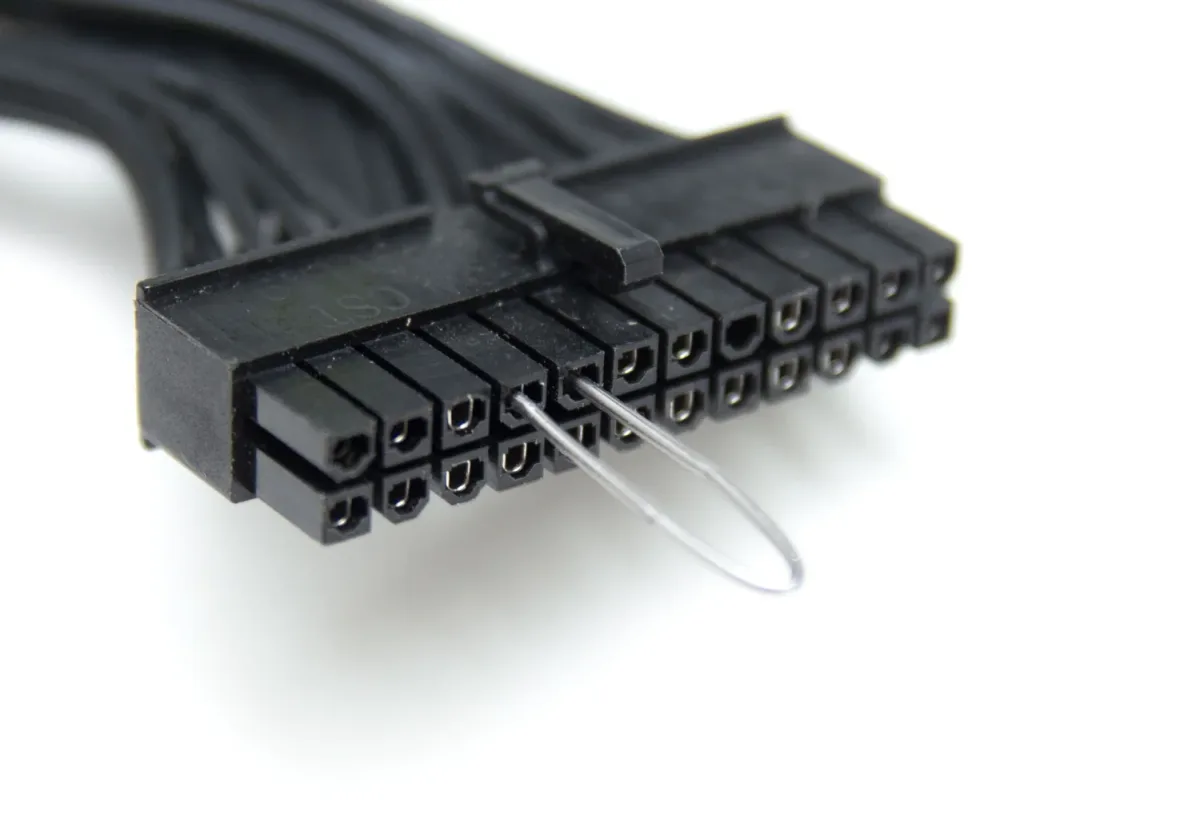
If the fan spins, the PSU's basic power-on circuit works. The issue is downstream. Move on to the power button bypass.
If the fan doesn't spin, the PSU is dead. No need to test anything else until you swap it. Trying to fix a dead PSU is unsafe and not worth it.
Bypass the Power Button Using the Front Panel Header
If the PSU is alive but the power button does nothing, the button itself or the cable running to it is the suspect. You can bypass it without touching the button.
Find the front panel header on the motherboard. It's a 9-pin block with labels like PWR_SW, PWR, or Power Switch, usually near the bottom edge. Touch a screwdriver across the two PWR_SW pins for one second.
The PC should turn on exactly like it would with the case button.
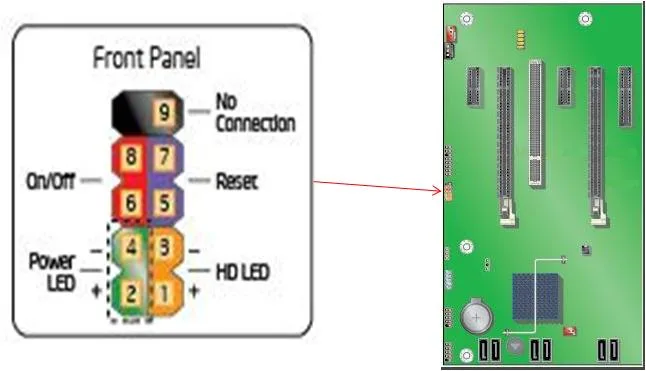
If the PC boots this way, the case power button or its cable is broken. You can either replace the case, swap the front panel cable, or just leave the screwdriver trick as a permanent workaround. Most people buy a cheap external power switch instead.
Reset the BIOS by Removing the CMOS Battery
A corrupted BIOS can stop a PC from booting even when the hardware is fine. It happens after a failed BIOS update, a power loss during boot, or a bad overclock. The fix is a CMOS reset.
Unplug the PC and hold the power button for 10 seconds to drain residual charge. Open the case and find the coin cell battery on the motherboard, usually a CR2032. Pop it out gently.
Wait five minutes. Press the power button a few times while it's out to fully drain the capacitors.
Some boards also have a CLR_CMOS jumper you can move from pins 1-2 to 2-3 for 30 seconds. Check your motherboard manual for the exact pins.
Put the battery back in, plug in the PSU, and try to boot. Default BIOS settings will be restored.
Try a Minimum Boot Configuration
If the PC still won't boot, the last desktop-side trick is to strip it down to the bare minimum. This isolates whether a peripheral is dragging the system down.
Disconnect everything except the CPU, one stick of RAM, and the 24-pin plus CPU power connectors. No GPU, no drives, no USB devices, no front panel buttons. Boot by shorting the front panel pins as shown above.
If it boots this way, the failure is in one of the disconnected components. Reconnect them one at a time until the fault returns. The last thing you plugged in is your culprit.
If it still doesn't boot with bare minimum, the motherboard or CPU is almost certainly the failure. Time to swap parts or call a shop.
Laptop Troubleshooting Branch
Laptops don't give you PSU connectors or front panel headers, so the workflow has to work through the chassis instead. The goal is the same: isolate the failure with the least amount of disassembly.
Perform a Hard Reset to Drain Residual Power
A laptop can get stuck in a state where the power button does nothing because the embedded controller is frozen. A hard reset clears it.
Disconnect the charger. If the battery is removable, take it out. Hold the power button for 15 to 30 seconds.
Reconnect the charger (leave the battery out if it's removable) and try to turn it on.
If the laptop fires up, the embedded controller was just stuck. Put the battery back in and carry on.
Test with a Known-Good Charger
Laptop chargers fail constantly, especially at the tip where the cable meets the connector. Wiggle the connector while pressing the power button. If the charging LED flickers or the laptop only powers on at certain angles, the charger tip is worn.
Borrow an identical wattage charger from a friend or use a USB-C charger that matches the laptop's required wattage. If the laptop boots on a different charger, your brick is dead.
Check for Signs of a Dead Battery vs. Dead Motherboard
If the laptop works only when plugged in and dies the second you pull the charger, the battery is the failure. That's a normal, replaceable fault.
If the laptop works on the charger but the battery is swollen, bulging, or hot to the touch, stop using it immediately. Lithium-ion battery failure is a real safety hazard. Dispose of it through a certified e-waste recycler.
If the laptop shows zero signs of life on a known-good charger even after a hard reset, the motherboard or charging circuit is gone. That's a board-level repair, which is usually more expensive than the laptop is worth.
Decoding What Your PC Is Telling You
Once a PC tries to start, it leaves clues. Most people ignore them, then end up replacing the wrong part.
POST Beep Codes by Manufacturer (AMI, Award, Phoenix)
POST beep codes are short patterns of beeps that play when the motherboard detects a fault during startup. The pattern tells you which component failed.
| Beep Pattern | Likely Fault |
|---|---|
| 1 short | Normal POST, no problem |
| 1 long, 2 short | Video adapter failure |
| 2 short | Memory parity error |
| Continuous short beeps | Power supply problem |
| Continuous long beeps | Memory not seated |
The exact codes vary by BIOS brand. Check your motherboard manual for the correct chart. AMI, Award, and Phoenix all use different patterns.
Diagnostic LED Patterns on the Motherboard
Many modern motherboards have four LEDs labeled CPU, DRAM, VGA, and BOOT. They light up in sequence during a successful boot. If the sequence stalls on one LED, that component is your fault.
A stuck DRAM LED means reseat the RAM. A stuck CPU LED means check the CPU power cable. A stuck VGA LED means reseat or swap the graphics card.
A stuck BOOT LED means the drive or boot configuration is the issue.
What "Powers On but No Display" Actually Means
If the fans spin, the lights come on, and nothing appears on screen, the PC has passed POST but can't initialize a display. This is usually a RAM, GPU, or video cable problem, not a dead PC.
Reseat the RAM. Try one stick at a time. Reseat the GPU or remove it and use the motherboard's video output if your CPU has integrated graphics.
Try a different display cable. If nothing works, the GPU is the prime suspect.
Common Causes of a Dead PC
Once you've run through the diagnostic branches, the cause usually lands in one of these buckets. Knowing the usual suspects helps you skip the long ones.
Failed Power Supply Unit
The PSU is the most common failure on any desktop. Capacitors dry out, fans seize, and protection circuits trip permanently. A typical PSU lasts 5 to 10 years depending on load and heat.
Symptoms include no standby light, no fan spin during the paper clip test, or a PC that powers on for a second and shuts off. None of these are motherboard faults.
Dead CMOS Battery
The CR2032 battery on the motherboard keeps BIOS settings alive while the PC is unplugged. When it dies, the BIOS resets every time you lose power, and on some boards it prevents boot entirely.
Symptoms include a PC that loses date and time, throws CMOS checksum errors, or refuses to boot right after a power outage. Replacement is a $5 fix and takes 30 seconds.
Corrupted BIOS After a Failed Update or Power Loss
A failed BIOS flash can brick a motherboard. The PC powers on, fans spin briefly, then nothing. Some boards have a BIOS flashback feature that lets you recover via USB stick on a separate port.
Check your manual before assuming the board is dead.
Power Surge or Outage Damage
A nearby lightning strike or a brownout can take out the PSU and motherboard in one shot. If multiple devices on the same circuit died at once, the surge is your prime suspect. A surge protector only helps if it was on the line before the surge hit.
Bad Wall Outlet or Tripped Breaker
We've come full circle. Always confirm the wall outlet first, because a GFCI breaker can trip and silently kill power to a whole room. Reset it and retest.
Safety Rules Before You Touch Anything Inside the Case
Working inside a PSU-connected PC is safe if you follow the basics. Skipping them is how people fry components and themselves.
Always unplug the PC from the wall before opening the case. Even with the switch off, the PSU holds residual charge on the 5VSB rail.
Touch a grounded metal surface before handling components. Static discharge doesn't hurt you, but it can silently kill a motherboard.
Never open a PSU. The capacitors inside hold enough charge to injure you even after the unit is unplugged. If the PSU is faulty, replace it, don't repair it.
Keep CR2032 batteries away from kids and pets. Lithium coin cells are a serious ingestion hazard.
Mistakes That Make a Dead PC Worse
A few common errors cost people perfectly good hardware. Avoid them.
Don't keep pressing the power button on a PC that smells like burning plastic or fish. That smell is a capacitor or MOSFET failing. Power off and unplug immediately.
Don't swap the CMOS battery while the PC is plugged in. Always unplug first.
Don't force the 24-pin connector. The latch is on one side. If it doesn't click easily, you have it flipped or misaligned.
Don't reseat components on a powered motherboard. Static discharge or a short circuit can kill chips in milliseconds.
Don't assume the motherboard is dead because the PC won't boot. In our research, a majority of "dead motherboard" reports turn out to be dead PSUs or dead CMOS batteries.
Quick Decision Guide: What's Actually Broken?
If you've worked through this guide and you're still stuck, this summary helps you pick the next move.
| Last Working Symptom | Most Likely Failed Part | Next Action |
|---|---|---|
| Standby LED on, button does nothing | Power button or front panel | Bypass with screwdriver |
| Paper clip test, fan doesn't spin | PSU | Replace PSU |
| Fans spin, no display | RAM, GPU, or display cable | Reseat RAM, swap cable |
| Beeps on POST | Component flagged by beep code | Check motherboard manual |
| Starts then dies in 1–2 seconds | Short circuit or weak PSU | Run minimum boot config |
| Works on charger only | Laptop battery | Replace battery |
| Dead after BIOS update | Corrupted BIOS | Use BIOS flashback if available |
Cost Expectations: Repair vs. Replace
If the diagnosis points to a failed part, the next question is whether to fix or replace. Here's how the math usually works as of 2026.
A replacement PSU runs $50 to $150 for a quality 80 PLUS Bronze or Gold unit. A CMOS battery is $5. A power button or front panel cable is $10 to $20.
A repair shop diagnostic fee is $75 to $150 before any parts. A motherboard replacement for an older socket often costs more than the entire PC is worth.
Use the repair path for any single component under $100 in a PC worth more than $400. Replace the whole PC if the motherboard or CPU has failed on a machine more than 6 years old.
Preventing the Next Dead PC
Most PC failures are avoidable. A few habits go a long way.
Use a quality surge protector, not a $5 power strip. Replace PSUs every 7 to 10 years even if they seem healthy. Keep the case dust-free, since dust buildup is the leading cause of PSU and fan failure.
Don't leave a laptop plugged in at 100% charge all day, since that shortens lithium-ion battery life. And back up important files, because even a successful repair can end with a fresh OS install that wipes the drive.
When "Jump Starting" Really Just Means Buying a New PSU
Sometimes the honest answer is that the cheapest, fastest fix is a new PSU. If your current unit is older than 7 years, has been making coil whine, or failed the paper clip test, there's no point diagnosing further.
Match the wattage to your system, leave 20 to 30% headroom for upgrades, and pick a unit with at least an 80 PLUS Bronze rating. Reputable manufacturers like Corsair, Seasonic, and EVGA publish tested specs that match their claims.
What About Calling the Manufacturer?
If the PC is still under warranty, stop tinkering and call the manufacturer first. Opening the case on a sealed laptop or breaking a warranty sticker on a prebuilt desktop can void your coverage entirely. Most major OEMs offer cross-shipment repairs for dead-on-arrival systems, which can mean a free replacement in under a week.
The One-Minute Decision Tree
If you only have sixty seconds, run through this:
- Wall outlet works? If not, fix it.
- PSU switch is on? If not, flip it.
- Standby LED on the motherboard? If yes, the PSU is alive. Jump the front panel pins to test the power button.
- Paper clip test spins the fan? If yes, PSU is good. Suspect motherboard or button.
- CMOS reset brings it back? If yes, you dodged a board replacement.
If none of these work, you have a real hardware fault. Replace the most likely part or hand it to a shop with your diagnosis notes.
Frequently Asked Questions
Can a completely dead PC be jump started?
Yes, in most cases. A truly dead PC is usually dead because of the PSU, CMOS battery, or power button. None of those require a new motherboard.
Work through the desktop or laptop branch in this guide and you'll either find the real fault or narrow it down enough to decide on a repair.
How long does a CMOS battery last?
A typical CR2032 CMOS battery lasts 3 to 10 years depending on temperature and how often the PC loses power. Heat shortens the lifespan significantly. If your motherboard is older than 5 years and you're seeing date and time resets or boot errors, swap the battery before chasing bigger fixes.
Will jumping the wrong pins fry my motherboard?
Yes. The front panel header has multiple pin groups for power, reset, HDD LED, and speakers. Touching the wrong pair, especially the +5V pins used for LEDs, can short a motherboard.
Only bridge the two pins labeled PWR_SW or Power Switch. The motherboard manual will show the exact layout.
Why does my PC turn on for a second then shut off?
This is almost always a short circuit or a weak PSU. A component is drawing more current than the PSU can deliver, triggering protection. Disconnect everything except the CPU, one RAM stick, and the 24-pin plus CPU power cables.
If it still does it, the PSU is too weak or the motherboard is shorted.
When should I stop and take it to a repair shop?
Stop when you've confirmed the wall outlet is good, the PSU fails the paper clip test or shows standby light issues, and the motherboard shows no signs of life after a CMOS reset. At that point you're dealing with motherboard or CPU faults that need professional diagnosis or a parts swap. Don't keep poking at a board that smells burnt or clicks repeatedly on startup.
Final Verdict: Build a Diagnosis, Don't Guess
Jump starting a PC isn't one trick. It's a sequence of tests that narrow the failure until only one part makes sense. Start at the wall outlet, not at the motherboard.
Confirm the PSU is firing before you suspect anything else. Use the paper clip test as your first real hardware check. Bypass the power button before assuming the motherboard is dead.
Reset the CMOS before chasing a BIOS corruption diagnosis. And if you're on a laptop, drain residual power and try a known-good charger before opening anything up.
Most "dead PC" cases resolve in under an hour once you follow the branch your symptoms put you on. The ones that don't resolve are the ones that genuinely needed a new part, and you'll know exactly which one by the time you reach the end of this guide.