What is loop recording on a dash cam: The Best Guide
If you've ever wondered what is loop recording on a dash cam, here's the short version: it's the reason your camera can keep filming on a tiny memory card forever, without you ever having to delete anything. Without loop recording, every dash cam would fill its storage in a single long drive and stop recording right when you needed it most. That's the opposite of what a dash cam is for.
Loop recording solves that by constantly recycling the oldest footage to make room for new footage. As of 2026, almost every dash cam on the market, from budget models to flagship 4K units, uses some version of this same system. Per SD Association guidelines, the cards inside these cameras are rated for thousands of hours of continuous writing, and loop recording is the workflow that pushes them to that limit.
To really get the most out of it, you need to understand how the overwrite cycle works, how segment length changes your coverage, and where footage can quietly get lost. Let's walk through it step by step.
Quick Answer
Loop recording is a dash cam feature that records video in short, timed segments. When the memory card fills up, the camera automatically deletes the oldest unlocked segment to make room for new footage. This keeps recording continuous without manual file management.
Locked or event files are protected from being overwritten.
Why Dash Cams Don't Just Record Forever — The Problem Loop Recording Solves
A dash cam is only useful if it's actually recording when something happens. That's obvious, but the math works against you pretty fast.
A 1080p dash cam at a typical bitrate of around 12 Mbps produces roughly 100 to 130 MB of footage per minute. Over a full hour, that's about 7 to 8 GB. A standard 64 GB card fills in roughly 8 hours of driving.
A 128 GB card buys you around 16 hours. Most commuters log well over that in a week.
Without loop recording, you'd have to manually offload or delete files constantly, or the camera would just stop. Neither option is realistic for a device that's supposed to run hands-off. A few early dash cams tried storing everything to internal flash, but that filled up and stopped recording within days, defeating the entire purpose.
Loop recording flips the problem. Instead of trying to save everything, it assumes only the most recent footage matters. It writes in small chunks, marks anything important, and throws away the rest as soon as space runs low.
You get continuous coverage with zero effort from the driver.
How Loop Recording Works Step by Step
Loop recording isn't one continuous video file. That's the first thing most people get wrong. It's a rolling series of short clips, and the camera treats each one like a separate file.
Here's the actual workflow the camera runs through, every minute you're on the road:
- The camera starts recording and writes to a video segment. Default lengths are usually 1, 2, 3, 5, or 10 minutes, depending on the model and your settings.
- Each segment is saved as its own MP4 or MOV file, with no gap between segments on most modern cameras. Anything older than your loop window gets marked as eligible for deletion.
- When the card hits roughly 90 to 95% full, the camera looks for the oldest unlocked segment and overwrites it. New footage always wins, oldest footage always loses.
- If the G-sensor detects a jolt or hard brake, the current segment gets flagged and moved to a protected "event" folder. These files are exempt from the overwrite cycle.
- The cycle repeats, indefinitely, until power is cut or the card fails.
The reason segments are short instead of one giant file is practical. Smaller files survive card corruption better, transfer faster over Wi-Fi, and are easier to share after an incident. Per the SD Association's speed class standards, cards rated U1 or V30 handle this constant chunked writing far more reliably than cheaper Class 10 cards.
The "seamless" part matters too. Older dash cams left a 1 to 3 second gap between segments, which meant you could miss the moment of an impact if it fell in the gap. Most cameras from 2022 onward use buffered writing that closes that gap, but it's worth checking your model's specs if you're buying or upgrading.
Loop Segment Length: 1, 3, 5, or 10 Minutes — How to Pick
Segment length sounds like a tiny setting. It actually changes how your dash cam performs in three real ways: file size, retrieval ease, and overwrite risk.
A 1-minute segment is the safest for evidence. If the camera overwrites a file right before a crash, you only lose up to 60 seconds of context. The downside is more files, more index overhead, and slightly more wear on the card.
A 3-minute segment is the most common default. It strikes a balance between manageable file sizes and meaningful chunks of footage. Easy to email, easy to organize.
A 5 or 10-minute segment is fine for long scenic drives where nothing is likely to happen. The risk is simple: a longer segment means more footage can be overwritten before you get a chance to pull it. If you crash at minute 4 of a 10-minute clip, and that clip is the oldest on the card, the entire 10 minutes is gone the moment the card fills.
Here's how to think through it:
| Segment Length | Best For | Trade-Off |
|---|---|---|
| 1 minute | High-traffic city driving, rideshare, maximum evidence protection | More files, slightly more card wear |
| 3 minutes | Daily commuting (most common default) | Balanced size and retention |
| 5 minutes | Suburban and highway driving | Longer overwrite windows |
| 10 minutes | Road trips, scenic capture | Higher risk of overwriting useful footage |
If you're not sure, leave it at 3 minutes. Manufacturer documentation across brands like Nextbase, VIOFO, and Garmin default to this length for good reason.
What Happens When the SD Card Fills Up
Loop recording makes the "card full" message mostly invisible, but the card is still filling up, constantly. Understanding what's on it at any given moment helps you avoid losing footage you actually need.
The card is split into three logical zones:
- Normal loop files. These take up the bulk of the space and are always the first to be overwritten. They hold the most recent few hours of driving.
- Event-locked files. These are protected segments triggered by sudden braking, collisions, or manual save. They're exempt from deletion until you clear them yourself.
- Parking mode files (if enabled). These get their own folder and behave differently depending on your settings. Time-lapse parking mode files are small and rotate quickly. Buffered parking mode files can be much larger.
The dangerous moment comes when your event folder fills up. If you've been in a fender bender, hard-braked through a few potholes, or had a distracted moment that triggered the G-sensor repeatedly, locked files can quietly eat 20 to 40% of your card. Once that happens, the loop zone shrinks.
Your camera still records, but the overwrite window tightens, and older "normal" footage cycles out faster.
The fix is simple and most drivers skip it. Check your card once a month, back up anything you want to keep, and format it in the camera (not on a computer). Formatting in-device keeps the file structure clean and reduces corruption risk.
Aggregate user reviews across major dash cam brands show that cameras whose owners format monthly have noticeably fewer card failures than those who never touch the card.
The Role of the G-Sensor and Event-Locked Files
Loop recording would be a disaster if it erased the footage you actually need. That's where the G-sensor earns its keep.
The G-sensor is a tiny accelerometer inside the dash cam. It measures sudden changes in force, anything from a sharp brake to a side impact to a speed bump hit too fast. When the reading crosses a threshold, the camera takes three actions at once: it flags the current segment as protected, it copies that segment to a locked folder, and it bumps the sensitivity rating of that moment so it's harder to delete manually.
Most cameras let you pick from three sensitivity levels:
- Low. Triggers only on real crashes. Best for rough roads, railroad tracks, or older vehicles with stiff suspensions that transmit every bump.
- Medium. The default. Reasonable balance for mixed driving.
- High. Catches minor fender benders but also locks tons of false files. Aggregate review data from rideshare drivers suggests High sensitivity fills the event folder in days.
Set it too sensitive, and you'll find your locked folder full of speed bumps and potholes. Set it too low, and a real bump-and-run at a stoplight might not register. Medium works for most people.
If you drive a sports car with a firm ride, drop it to Low.
Loop Recording vs. Parking Mode vs. Time-Lapse
These three modes sound similar but all do very different things to your card. Loop recording is for when you're driving. The other two handle the car sitting still.
| Mode | When It Runs | How It Writes | Best For |
|---|---|---|---|
| Loop recording | Ignition on | Full bitrate, continuous segments | Daily driving evidence |
| Parking mode (buffered) | Ignition off, motion or impact detected | Full bitrate, only when triggered | Hit-and-run protection |
| Parking mode (time-lapse) | Ignition off | 1 frame per second, compressed | Long airport stays, street parking |
Buffered parking mode writes full-quality video only when something happens in front of the camera. It's a good middle ground but eats more card space when triggered.
Time-lapse parking mode records a frame every second or two. A 24-hour time-lapse at 1 fps produces a short, fast-forward-style clip that takes up far less space. The catch is that nothing between frames gets captured, so a fast-moving hit-and-run might appear as a blur.
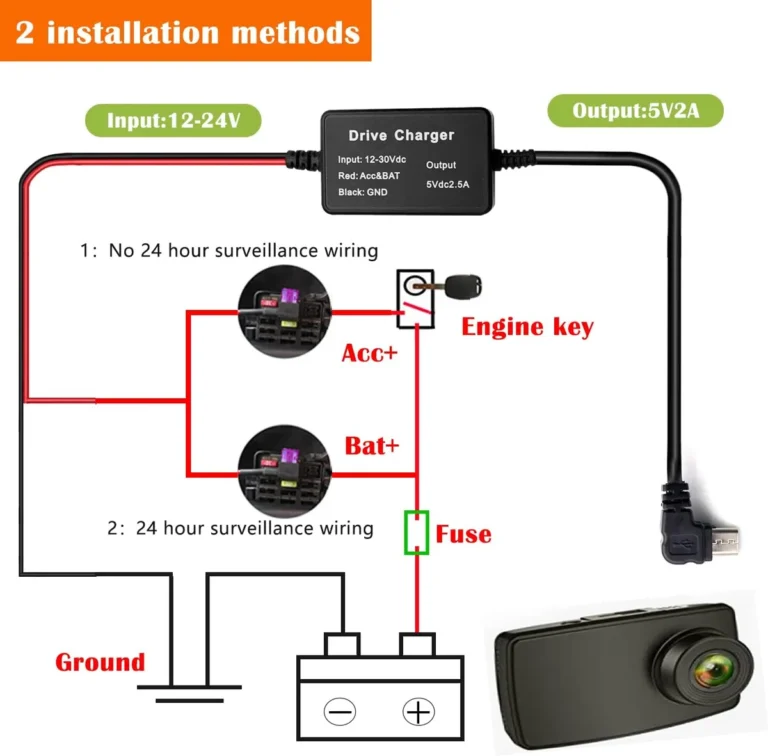
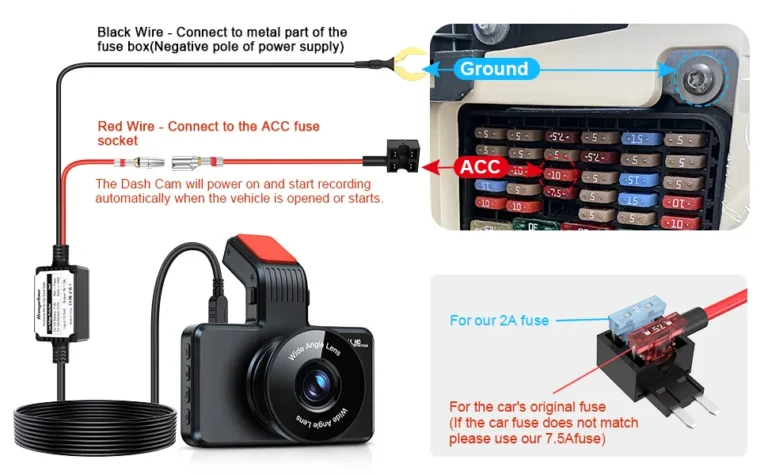
Loop recording alone won't protect a parked car. For that, you need parking mode, plus a hardwire kit or an external battery pack so the camera gets power with the ignition off. Per manufacturer specs from Thinkware and BlackVue, parking mode draws roughly 200 to 500 mA, which can drain a healthy car battery in 24 to 48 hours if you don't drive.
How Much Footage Actually Fits on Your SD Card
Storage math is the part most guides skip. It's also the part that decides whether your camera records 4 hours or 40 hours before overwriting starts.
The two variables that matter are resolution and bitrate. Higher resolution at a higher bitrate means bigger files and fewer hours of loop coverage. Here's what current-generation cards produce at typical settings:
| Card Size | 1080p / 12 Mbps | 1440p / 20 Mbps | 4K / 40 Mbps |
|---|---|---|---|
| 32 GB | ~5.5 hours | ~3.5 hours | ~1.5 hours |
| 64 GB | ~11 hours | ~7 hours | ~3 hours |
| 128 GB | ~22 hours | ~14 hours | ~6 hours |
| 256 GB | ~44 hours | ~28 hours | ~12 hours |
| 512 GB | ~88 hours | ~56 hours | ~24 hours |
These numbers assume the card is fully available for loop recording. Subtract 10 to 20% if you've got a heavy event folder. Subtract more if parking mode files are piling up.
For a daily commuter doing 1 to 2 hours of driving, a 128 GB card at 1080p gives you roughly two weeks of rolling coverage before the oldest file gets overwritten. That's a healthy buffer. Anything smaller, and you're one unlucky week away from losing footage.
The Best SD Cards for Constant Loop Recording (Endurance Matters)
Here's where most dash cam owners go wrong. They buy a fast card, not an endurance card. Those are not the same thing.
Standard microSD cards are designed for sequential bursts: writing a phone video, saving camera photos, loading app data. Dash cams do the opposite. They write small chunks of data constantly, 24/7 sometimes, and they overwrite the same memory cells again and again.
That kills standard cards in months.
Endurance cards are built for exactly this workload. They use higher-grade NAND flash rated for far more write cycles. Per Samsung's PRO Endurance spec sheet, those cards are rated for up to 26,000 hours of continuous recording.
SanDisk's High Endurance line claims similar numbers, around 20,000 to 15,000 hours depending on capacity.
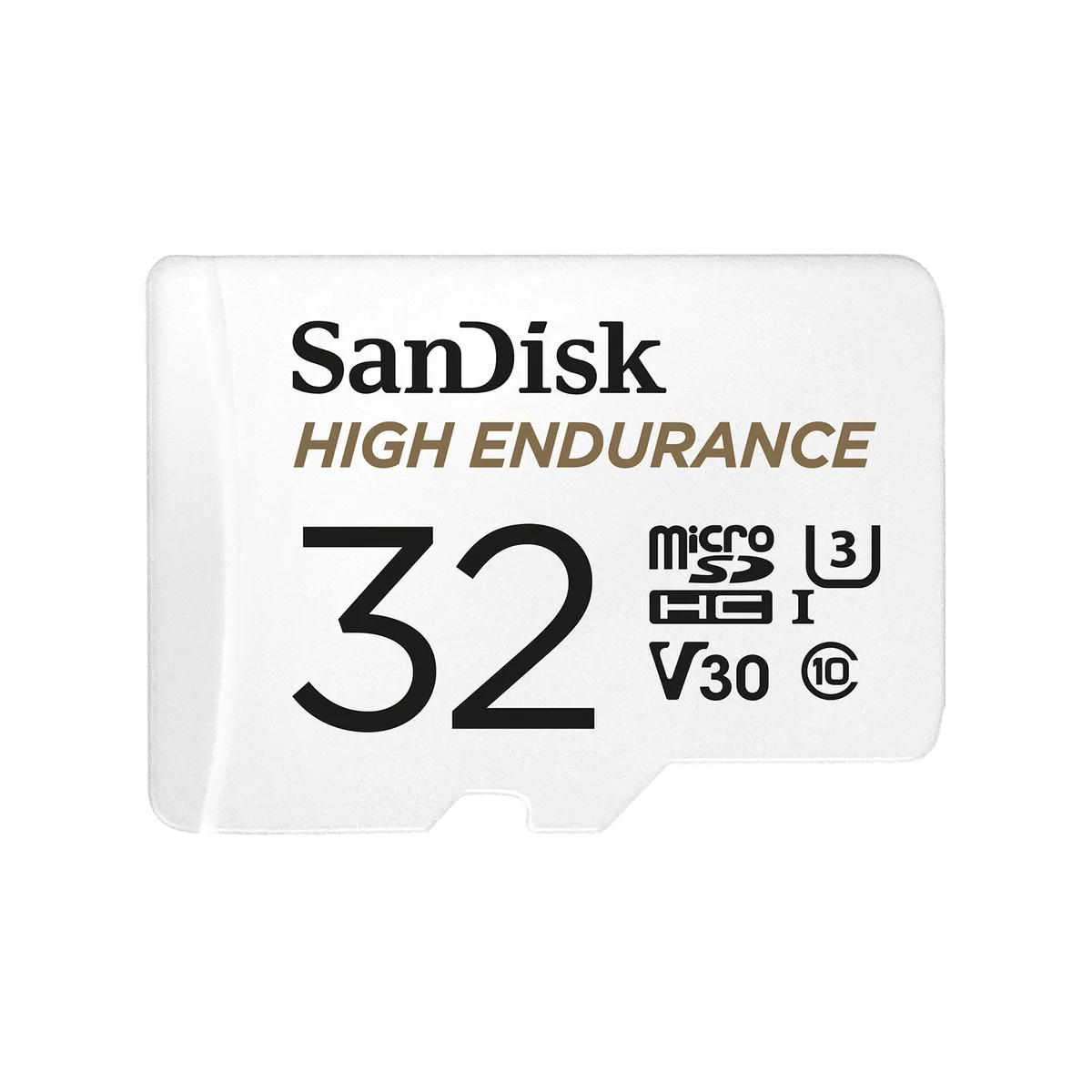
What to look for when you're picking a card:
- Speed class. U3 or V30 minimum. U1 and Class 10 cards technically work at 1080p but drop frames at higher bitrates.
- Endurance rating. Look for "High Endurance" or "Max Endurance" in the product name. Standard cards don't list this because they aren't rated for it.
- Capacity. Match the card to your resolution. 64 GB minimum for 1080p, 128 GB or more for 4K.
- Format. Format the card in the dash cam, not on your computer. Most cameras prefer exFAT for cards over 64 GB.
A few extra dollars on an endurance card buys you years of reliable loop recording. A cheap card costs you the one piece of footage you actually needed.
Common Loop Recording Problems and How to Fix Them
When loop recording misbehaves, it's almost always one of five things. Here's how to spot each one fast.
"My footage keeps stopping after a few minutes"
This is almost always a speed class mismatch. The card can't keep up with the bitrate, so the camera stalls. Fix: replace the card with a U3 or V30 rated model.
"My important clip is gone"
The event folder filled up, so older locked files got purged. Fix: back up locked files weekly, or raise the G-sensor threshold so fewer false triggers lock junk footage.
"The card says it's full but there's nothing on it"
File system corruption. This happens when cards are pulled mid-write or formatted on the wrong device. Fix: format the card in the camera and avoid yanking power without shutting down properly.
"Footage is choppy or has missing frames"
Heat. Cards throttle in hot cars. Fix: park in shade when possible, use a card rated for high temperatures, and avoid mounting the camera directly behind a dark windshield in summer.
"The camera says 'Card Error'"
End of life. The card has used up its rated write cycles. Fix: replace it.
Endurance cards last longer, but no card lasts forever in a dash cam. Annual replacement is reasonable for heavy users.
How to Set Up Loop Recording on Your Dash Cam
Most loop recording problems start before the first drive. A clean setup takes ten minutes and saves hours later.
Start by formatting the card inside the camera, not on a laptop. The menu is usually under Settings, Storage, or Format. Then choose your segment length (3 minutes is a safe default), pick a G-sensor sensitivity (Medium for most cars, Low for stiff rides), and confirm that audio recording is set how you want it.
Some states require two-party consent, which we'll get to in a moment.
Finally, drive a loop around the block and check the file list on your phone or computer. You should see segments appearing in real time, no gaps, no errors. If anything looks off, the fix is in the troubleshooting section above.
When Loop Recording Fails You — Mistakes That Wipe Critical Footage
The single biggest mistake is trusting the loop to save everything. It won't. Loop recording only protects the most recent drive.
The moment an accident happens, the countdown to overwrite begins.
Three patterns show up over and over in real-world failures. Drivers park and walk away without pulling the SD card. Drivers assume the G-sensor caught the impact when it didn't.
And drivers let the locked folder fill up with junk until real events have nowhere to land. If you take one habit from this guide, make it this: after any incident, pull the card or download the locked files before you drive anywhere else.
Expert Tips to Keep Loop Recording Reliable Long-Term
- Replace the card yearly. Endurance cards last longer, but constant writing wears them out.
- Format monthly. A quick in-device format keeps the file system clean.
- Update firmware. Manufacturers occasionally fix card compatibility bugs that cause silent recording drops.
- Check the timestamp. A dash cam with a dead battery can reset to 2000, which scrambles evidence timestamps. Sync it from your phone app regularly.
Loop Recording and the Law: Audio, Privacy, and Admissibility
Loop recording is legal almost everywhere for video. Audio is where it gets tricky.
In the US, twelve states require two-party consent for in-car audio recording: California, Florida, Illinois, Maryland, Massachusetts, New Hampshire, Pennsylvania, Washington, Montana, Delaware, and Oregon. If you're a rideshare driver carrying passengers, disabling audio is the simplest path.
In the UK and EU, dash cam use is legal but video showing identifiable people outside the vehicle should be edited before posting. Per the UK ICO domestic CCTV guidance, dash cam footage falls under data protection rules when shared publicly.
For court admissibility, the footage needs an unbroken timestamp and chain of custody. Pulling the card directly after an incident and handing it to an officer is the cleanest path. Edited clips rarely hold up.
Frequently Asked Questions
How long does a 64GB card record on a dash cam?
Roughly 11 hours at 1080p, or about 7 hours at 1440p. Less if your event folder is full.
Does loop recording delete locked files?
No. Locked files stay until you delete them manually, but a full locked folder will eventually prevent new ones from being saved.
Can loop recording drain my car battery?
Only if parking mode is enabled. Loop recording itself stops with the ignition.
Why does my dash cam keep saying card error?
The card has likely reached the end of its write-cycle lifespan. Replace it with a fresh endurance-rated card.
Is loop recording enough evidence for insurance?
In most cases, yes, provided the timestamp is correct and the footage clearly shows the other vehicle's plate and the impact.