How do you view dash cam footage: Honest Review
Knowing how do you view dash cam footage matters the moment something happens on the road. Most owners only discover their dash cam stores video in a way they never expected, and by then it's too late. The good news: every modern dash cam gives you at least three ways to pull up your clips.
You can usually view footage straight on the device, through a phone app over Wi-Fi, or by popping the microSD card into a computer. Manufacturer specifications indicate that as of 2026, most consumer dash cams record in MP4 with H.264 or H.265 encoding, which plays on nearly any device. Below we'll walk through each method so you can pick the one that fits your situation, your dash cam model, and how fast you need that clip in hand.
Quick Answer
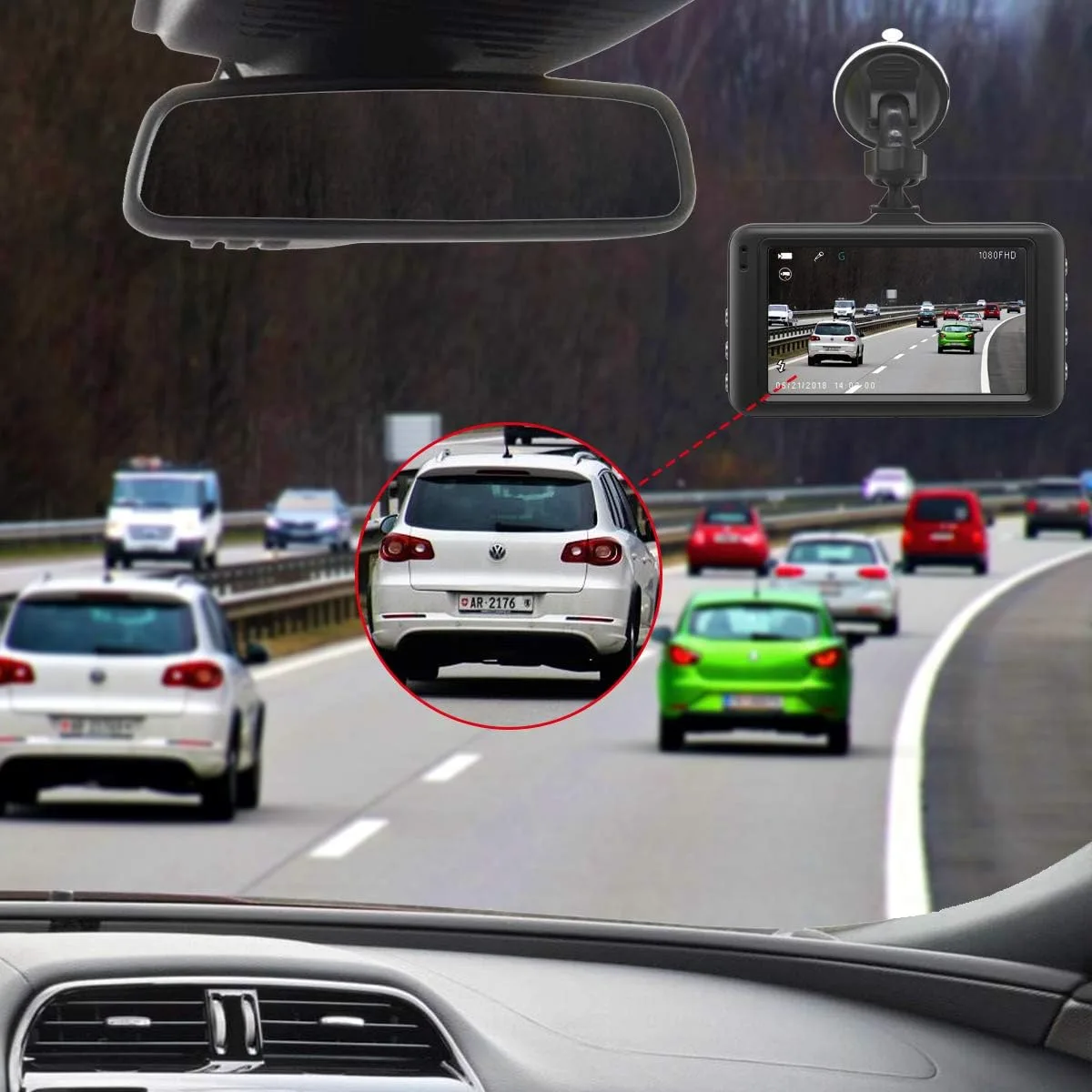
You can view dash cam footage on the device itself, in a phone app, on a computer, or on a TV. Each method uses a different connection. Pick the one that matches your dash cam's features.
Always lock or back up the file right away. Loop recording can overwrite it within minutes.
How You Can View Dash Cam Footage: The 4 Methods That Actually Work
There are four reliable ways to pull up your dash cam clips, and each works for a different setup. Some dash cams support all four. Cheaper models support only one or two.
The trick is knowing which method matches your camera and your situation, then using it before loop recording eats the file.
The 4 Viewing Methods at a Glance
| Method | Best For | What You Need | Speed |
|---|---|---|---|
| On the dash cam screen | Quick check at the scene | Nothing extra | Fastest |
| Phone app over Wi-Fi | Sharing clips on the go | The brand's app | 2-5 minutes per clip |
| Computer via SD card | Full-quality review and backup | Card reader or USB cable | Fastest for bulk files |
| TV via HDMI/AV | Showing others in person | HDMI or AV cable | Instant |
If you only have a minute, start with the on-screen method. If you're filing a claim and need a clean copy, go straight to the computer. If you're on the side of the road with no laptop, the phone app is your friend.
Method 1: Watch Footage Directly on the Dash Cam Screen
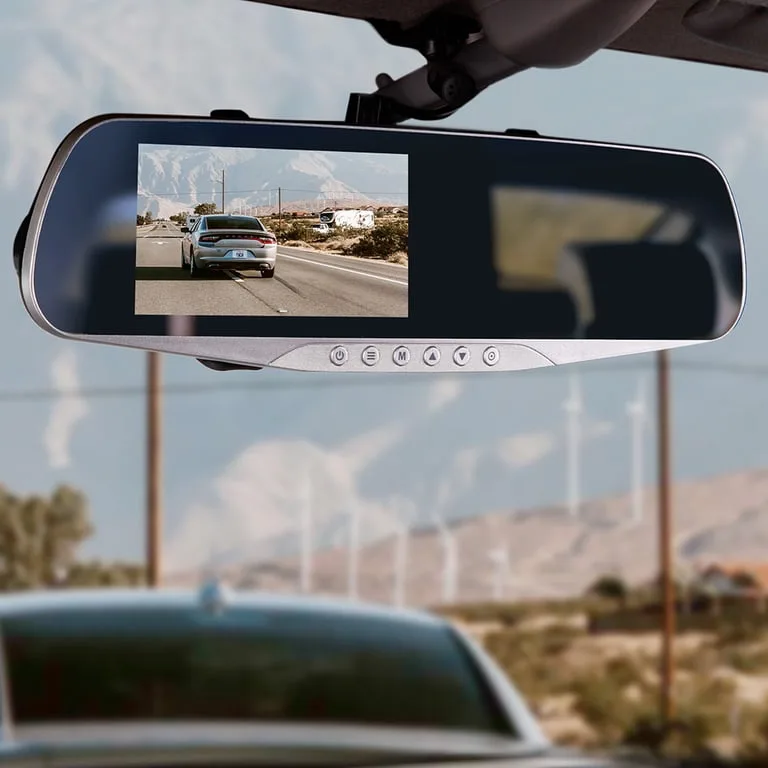
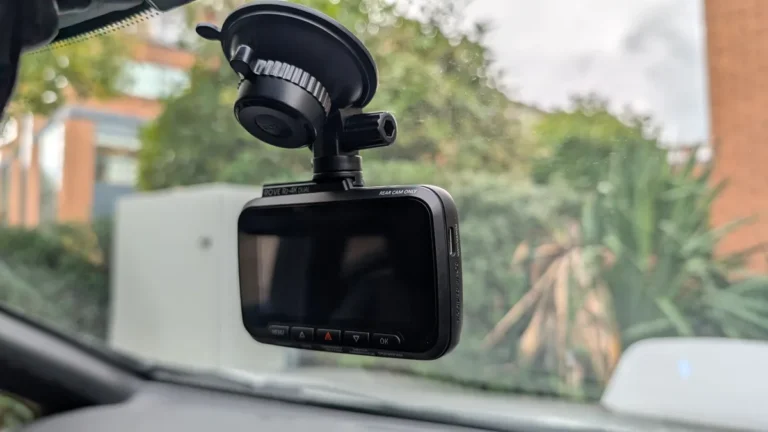
Most dash cams with a built-in screen let you play back recordings without touching anything else. Aggregate user reviews indicate this is the method drivers use most, because the camera is already in your hand and powered on.
How to Play Back on the Dash Cam
- Press the Mode or Menu button until you see "Playback" or a filmstrip symbol.
- Use the arrow keys to scroll through the date folders.
- Pick the file you want and press OK to play.
- Press the lock or protect button if your cam has one, so loop recording won't overwrite it.
When On-Screen Playback Works Best
- You just had a minor fender bender and want to confirm the cam caught it.
- The screen is bigger than 1.5 inches and easy to read in daylight.
- You're troubleshooting a settings issue and want to check the angle.
When It Falls Short
- The screen is too small to show fine details like a license plate.
- You need to share the file with your insurer right away.
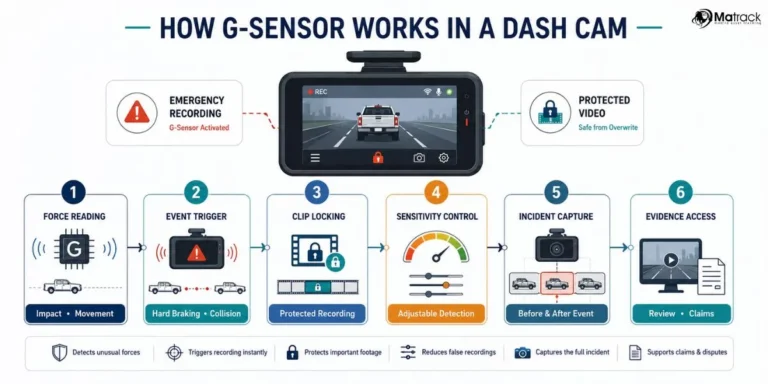
- The dash cam didn't save the clip because the G-sensor didn't trigger, and loop recording already overwrote it.
In our research, on-screen playback is the fastest first step, but rarely the final one. Use it to confirm the file exists, then move to a bigger screen for actual review.
Method 2: View Dash Cam Footage on Your Phone (Wi-Fi or App)
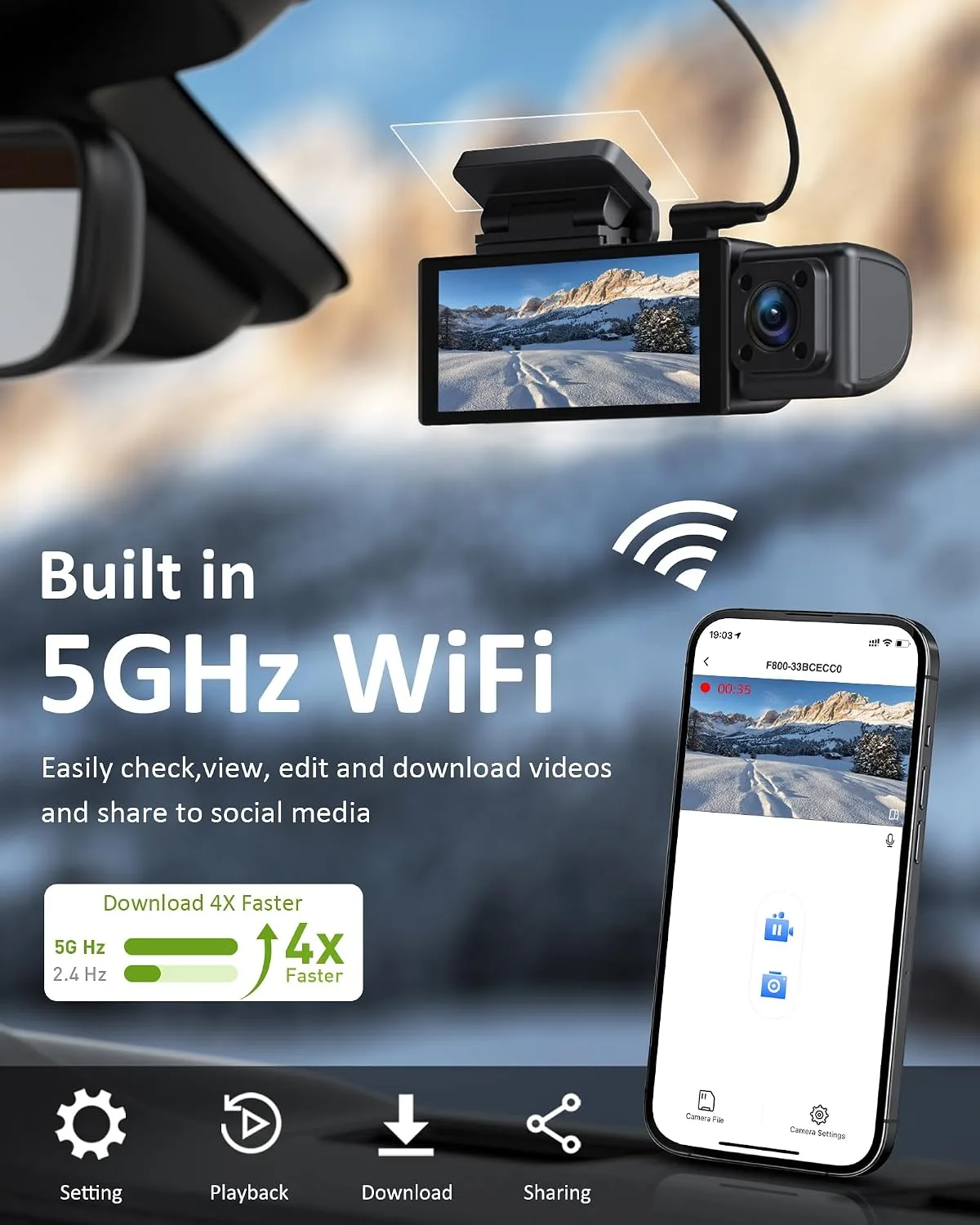
If your dash cam has Wi-Fi, the companion app is usually the easiest way to pull footage without removing the card. Most 2024-and-newer models from Garmin, Viofo, Nextbase, Thinkware, and BlackVue support this. The trade-off is transfer speed.
Wi-Fi direct tends to move a one-minute 1080p clip in roughly 30 to 90 seconds, depending on your phone and the cam's Wi-Fi chip.
Step-by-Step: Pull Footage Through the App
- Open the dash cam's app on your phone.
- Connect your phone to the cam's Wi-Fi network (look for the SSID printed on the cam or in the manual).
- Open the playback or file list inside the app.
- Tap the clip you want.
- Hit Download to save it to your phone's camera roll.
- Back up the file to cloud or email before closing the app.
If Your Phone Can't Find the Dash Cam Wi-Fi
- Make sure the cam is powered on, not just plugged into a dead car socket.
- Toggle airplane mode on your phone, then turn Wi-Fi back on.
- Forget the network and reconnect.
- Check that no other device is hogging the connection.
- Restart the cam if the SSID still doesn't appear.
When the App Beats the Computer
- You're at the accident scene with no laptop.
- You want to text a 10-second clip to your insurance agent right now.
- You're a rideshare driver who needs to share footage with a passenger or platform support team.
Manufacturer documentation confirms that phone app transfers rarely hit the cam's full write speed, so a 4K clip can feel slow. That's normal. For full archives, the computer method is still faster.
Method 3: Play Dash Cam Files on a Computer or Laptop
This is the gold standard for serious review. The SD card reader on a laptop reads at the card's full speed, which is much faster than Wi-Fi. Most U3-rated microSD cards push 80 to 100 MB/s, so a 10 GB hour of footage transfers in roughly two minutes.
Per the SD Association speed class standards, look for cards rated U3 or V30 if you're running 4K.
How to Pull Footage on a Computer
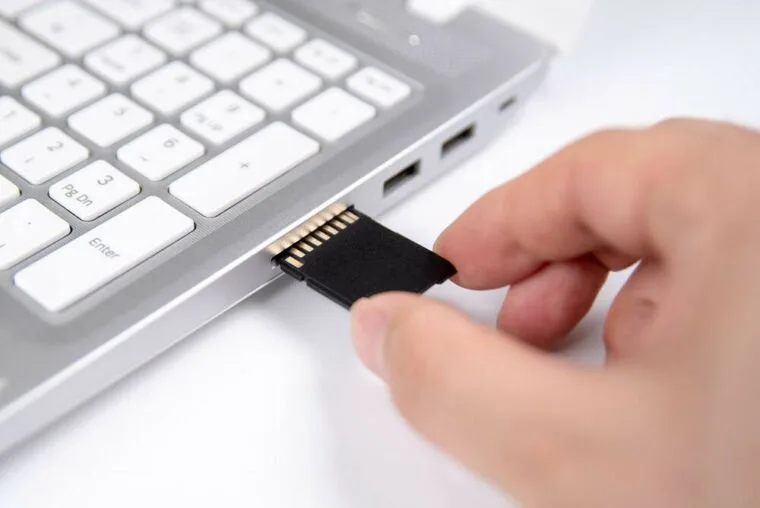
- Power off the dash cam.
- Eject the microSD card (most cams use a spring-loaded slot).
- Insert the card into your laptop's built-in reader, or a USB card reader.
- Open File Explorer (Windows) or Finder (Mac).
- Navigate to the DCIM folder.
- Drag the files you want to a folder on your desktop.
- Don't forget to copy the locked or event files from the RO folder if your cam separates them.
What to Do If the Files Won't Play
Your computer might not have the right codec installed. Most dash cams save in MP4 with H.264, which plays natively on Windows 10+, macOS, and any modern Linux distro. But some 4K cams use H.265 (HEVC), which older Windows builds can't handle.
If the file opens but shows no video, install the free VLC media player, which ships with both codecs built in. Per the VLC media player site, it plays "practically any video format" without extra codecs.
How to Keep Original Files Safe for Evidence
- Copy the file, don't cut it.
- Rename the copy with the date, time, and location.
- Store the original on the card untouched.
- Compute a hash (SHA-256) of the file if you're preparing a formal claim.
When the Computer Method Wins
- You're submitting footage to police or an insurer.
- You want frame-by-frame review of a fast-moving incident.
- You're archiving a road trip.
- The phone app keeps crashing mid-transfer.
Common Card Reader Mistakes
- Plugging the card in upside down. The gold pins usually face down.
- Using a cheap USB 2.0 reader on a U3 card, which bottlenecks transfers.
- Forgetting to safely eject before yanking the card, which can corrupt files.
If your laptop has no built-in reader, a $10 USB-C microSD reader does the job. Avoid pulling the card while the cam is still writing, or you'll end up with a corrupted MP4.
Method 4: Connect Your Dash Cam to a TV or External Display
If you want a big-screen review without copying files, an HDMI or AV cable is the move. Most dash cams with a screen also have a mini-HDMI port on the side. Older budget cams use a 3.5 mm AV jack instead.
Manufacturer specs confirm the HDMI port outputs up to 1080p, while AV tops out at standard definition.
How to Connect a Dash Cam to a TV
- Power the dash cam with the car charger or a USB power bank.
- Plug the HDMI or AV cable into the cam's output port.
- Plug the other end into your TV's matching input.
- Switch the TV source to that HDMI or AV channel.
- Use the dash cam's playback menu to pick the file.
When TV Playback Is the Right Call
- You're showing an adjuster the angle of an accident.
- You're demonstrating the cam's quality to a friend who's shopping for one.
- The on-board screen is dead and you need a quick check.
The Trade-Offs to Know
- AV output downscales to fuzzy standard definition, which kills license plate detail.
- HDMI cables for dash cams are rarely included, so you'll need a mini-HDMI to full-HDMI lead.
- The TV shows the file, but you still can't easily copy it off for sharing.
In our research, HDMI output is great for proof and demos, but rarely the final step in a real claim. Pair it with the phone app or the computer method if you actually need a copy.
What to Do If Your Dash Cam Footage Won't Play
Sometimes the worst happens at the worst time. The file exists, but it refuses to open, freezes mid-clip, or shows a black screen. In our research, these are the six most common playback failures and the fix for each.
The File Opens but Shows No Video
This is almost always a codec mismatch. Install VLC, then drag the file into VLC instead of your default player. VLC carries H.264 and H.265 decoders built in.
The File Says "Corrupted" or Won't Open at All
The microSD card may have a bad block. Stop using the card. Try a recovery tool like Recuva (Windows) or Disk Drill (Mac) to pull the raw file off the card.
If the recovery tool sees it, copy it out before you do anything else.
The File Plays but Skips and Stutters
Your card is probably too slow for the resolution. Aggregate user reviews indicate that a Class 10 card works for 1080p but struggles with 4K. Swap in a U3 or V30 card.
The Date Stamp Is Wrong
The cam's internal clock drifted, often after a dead battery. Set the time and date manually, or sync via the companion app.
There's No Audio
Check the menu for a microphone toggle. Some cams disable audio by default in certain regions for legal reasons.
The G-Sensor Didn't Save the Clip
If loop recording already recycled the file, it's gone for good. In future, press the lock or save button right after any incident.
How to Pull Dash Cam Footage From Cloud Storage
If your dash cam has a cloud feature (BlackVue, Thinkware, some Nextbase models), footage uploads over the cam's hotspot or your phone's signal. Cloud archives are a lifesaver if the cam gets stolen or the card dies. Per the BlackVue Cloud documentation, the typical retention window runs 7 to 30 days depending on your plan.
How to Download From Cloud
- Open the dash cam's cloud app or web portal.
- Sign in with the account tied to the camera.
- Browse the live or recorded event list.
- Pick the clip and hit download.
- Save the file to your phone or computer before the retention window closes.
Cloud vs. SD Card: When Each Wins
- Cloud keeps footage safe if the cam is stolen or smashed.
- SD card gives you every second of driving, not just events.
- Cloud needs a working data signal or in-car hotspot.
- SD card works offline anywhere.
If your insurer wants a guaranteed copy, the SD card is still the safest source. Cloud is the safety net.
How to Save and Share Footage for an Insurance Claim or Police Report
Once you have the file, the next step is preserving it properly. Aggregate reviews of claim submissions report that insurers and police usually want the original file with its metadata intact. Edits or re-encodes can weaken the evidence.
Steps to Prepare a Clean Copy
- Copy the original MP4 from the card without renaming it.
- Save a backup on a separate drive or cloud account.
- Note the date, time, and GPS coordinates shown on screen.
- Screenshot the in-app map or G-sensor graph if your cam overlays one.
- Email or upload the file through the insurer's claim portal.
What Insurers Usually Accept
- Original MP4 or MOV file.
- Time-stamped video.
- GPS data overlay (if your cam records it).
- A short written statement matching the timestamp.
What Insurers Usually Reject
- Cropped or color-corrected video.
- Clips missing the original metadata.
- Files shared only through social media DMs.
Per the Insurance Information Institute, clear documentation speeds up claim processing and reduces disputes. Treat every dash cam clip as evidence until you're sure you don't need it.
Mistakes People Make When Trying to View Their Dash Cam Footage
Even experienced drivers miss these. Avoiding them takes 30 seconds and saves you hours of frustration after an incident.
Letting Loop Recording Eat the Clip
Loop segments usually run 1, 3, or 5 minutes. If you don't lock the file, the cam overwrites it as soon as the card fills. Press the lock or save button the moment anything happens.
Pulling the Card While the Cam Is Still On
Yanking power mid-write corrupts files. Power off the cam first, then eject the card.
Formatting the Card Too Often
Formatting once a month is fine. Formatting every few days shortens card life. Stick to a monthly schedule.
Editing the Original File
Cropping a clip to save space strips the original metadata. Always work on a copy.
Sharing Clips Publicly With Visible Plates
Be cautious. In some US states and across the EU, posting identifiable footage online can run into privacy laws. Blur plates and faces if you must upload.
Forgetting to Update Firmware
Firmware updates often fix playback bugs and codec issues. Check the manufacturer's app or support page quarterly.
Ignoring Card Health
A dash cam card wears out faster than a normal card. Replace it every 12 to 18 months if you drive daily.
Pro Tips From Drivers Who Pull Footage Regularly
A handful of habits separate drivers who recover footage easily from those who lose it. We've gathered these from aggregate user reviews and forum threads where dash cam owners swap real-world advice.
Save a Test Clip Every Month
Park the car. Press record. Stop recording.
Pull the file and confirm it opens in VLC. This five-minute habit catches a dying card before an actual incident.
Keep a Spare microSD in the Glovebox
If your main card fails on the road, a fresh card gets the cam recording again in 60 seconds.
Screenshot Your Cam Settings
After you dial in resolution, bitrate, and time, snap a photo of the menu. If a setting resets after a firmware update, you can restore it in seconds.
Sync Time Through GPS
Set your dash cam to GPS time sync. Manual clocks drift within weeks. GPS time stays accurate to the second.
Use the Event Folder for Anything Important
Most cams split files into Normal and Event folders. Anything the G-sensor flags lands in Event and is protected from loop recording. Verify your cam creates that folder.
Label Files Before You Email Them
Rename with date, location, and direction of travel: 2026-03-14_I70_Eastbound.mp4. Insurers and police can file these faster.
Legal and Privacy Notes Before You Share or Post Footage
Dash cam footage is powerful, but it also comes with rules. Where you live changes what you can legally record and share.
United States Rules
Most states allow recording on public roads. A handful, including California and Connecticut, require both parties to consent to audio recording. If your cam records audio, check your state's wiretapping law before sharing a clip with sound.
United Kingdom and EU Rules
GDPR treats dash cam video as personal data if faces or plates are recognizable. Per the Information Commissioner's Office, you should blur third parties before posting footage online. The ICO also notes you only need to register with them if you systematically monitor people, which a personal dash cam usually does not.
Australia and Other Regions
Rules vary by state. New South Wales allows recording on public roads. Some European countries ban dash cams outright.
Always check local law before installing.
Posting Footage Online
Even where it's legal, think twice before uploading a crash clip with visible faces or plates. Blurring is a 30-second job in any free editor and saves you potential headaches.
Final Checklist: Pick the Right Viewing Method for Your Situation
Use this quick decision guide the next time you need to pull footage. It maps common situations to the method that gets the clip fastest.
You're Still at the Scene
- Use the dash cam's own screen for a quick check.
- Lock the file right away.
You're On the Road With Only Your Phone
- Connect to the cam's Wi-Fi through the app.
- Download the clip to your phone.
- Email or upload it before you drive off.
You're Filing an Insurance Claim
- Pop the microSD card out.
- Copy the original file to your computer.
- Back up to a separate drive or cloud.
- Submit the untouched MP4 through the claim portal.
You're Helping Police With a Report
- Save a copy on the card and on your laptop.
- Screenshot the GPS data if your cam overlays it.
- Hand over the file on a USB drive or through a secure upload link.
You're Showing a Friend or Adjuster
- Plug into a TV with HDMI for the clearest demo.
- Pair it with a phone app download if they want their own copy.
You Just Want to Review a Road Trip
- Pull the card.
- Open the files in VLC.
- Watch in order, or sort by date in File Explorer.
A working viewing method comes down to knowing which connection your dash cam supports and which file format it writes. Once you've done it once, the second time is muscle memory. Keep that spare card, update the firmware, and lock the important clips, and you'll never lose footage when it matters.
Frequently Asked Questions
Can I view dash cam footage without removing the SD card?
Yes. If your dash cam has Wi-Fi, use the companion app to stream or download clips without ejecting the card. You can also play files back on the dash cam's own screen if it has one.
Why won't my dash cam footage play on Windows Media Player?
Older Windows builds lack the H.265 codec used by many 4K dash cams. Install the free VLC media player, which ships with H.264 and H.265 decoders built in.
How long does dash cam footage stay on the SD card?
It depends on the card size, the resolution, and the bitrate. A 128 GB card typically holds 12 to 20 hours of 1080p footage before loop recording overwrites the oldest files.
Can police view my dash cam footage?
Yes. Officers can request or subpoena footage as evidence. If you file a report, providing the clip voluntarily speeds up the investigation.
Always share the original file, not an edited copy.
Is cloud storage for dash cams worth it?
If your cam is at risk of theft, or you want automatic backups, cloud plans from BlackVue, Thinkware, or Nextbase are worth the monthly fee. For everyday drivers, a quality microSD card and a manual backup routine work fine.
Can I share dash cam footage on social media legally?
It depends on your location. In the US, you can usually post clips from public roads, but audio recording rules vary by state. In the UK and EU, GDPR requires you to blur faces and plates before uploading.
When in doubt, edit out identifiable details before posting.
What file format do dash cams record in?
Most consumer dash cams record in MP4 with H.264 or H.265 encoding. Some older or budget models use MOV or AVI. MP4 with H.264 is the most universally compatible across phones, computers, and TVs.
Dash Cam File Formats and Codecs Explained
The file extension tells you almost nothing about compatibility. What matters is the codec inside the wrapper. MP4 with H.264 plays on virtually anything made in the last decade.
MP4 with H.265 (HEVC) looks sharper and halves the file size, but older PCs and some smart TVs choke on it.
Quick Codec Compatibility Guide
| Format | Best For | Plays On |
|---|---|---|
| MP4 + H.264 | Universal compatibility | Phones, PCs, Macs, TVs |
| MP4 + H.265 | Smaller 4K files | Newer devices, may need VLC |
| MOV | Older iOS-friendly cams | Macs, iPhones, most PCs |
| TS | Some 4K dash cams | VLC, some media players |
If your insurer asks for a specific format, hand them the original and let their software handle the conversion. Re-encoding yourself usually strips the GPS metadata.