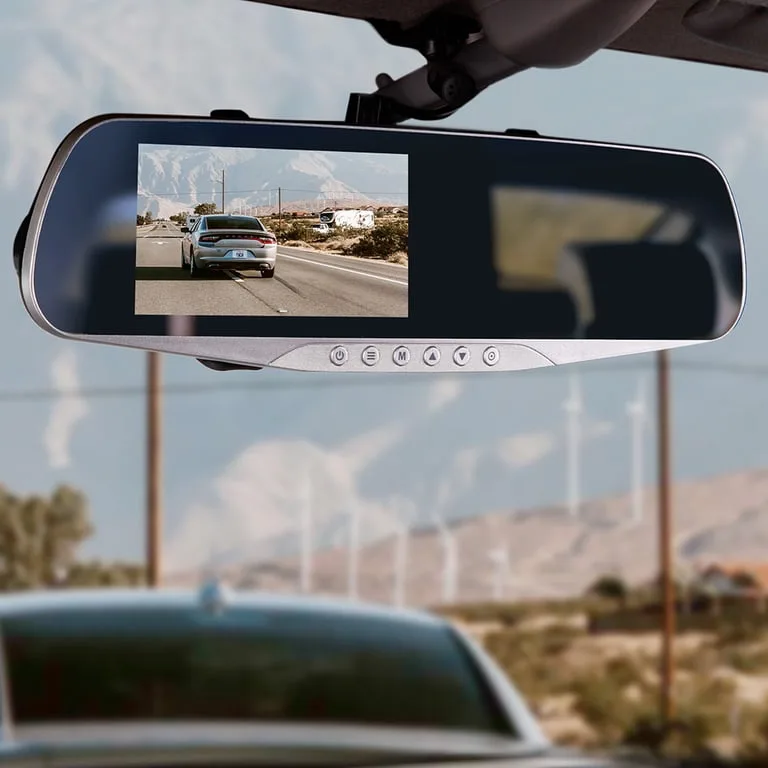
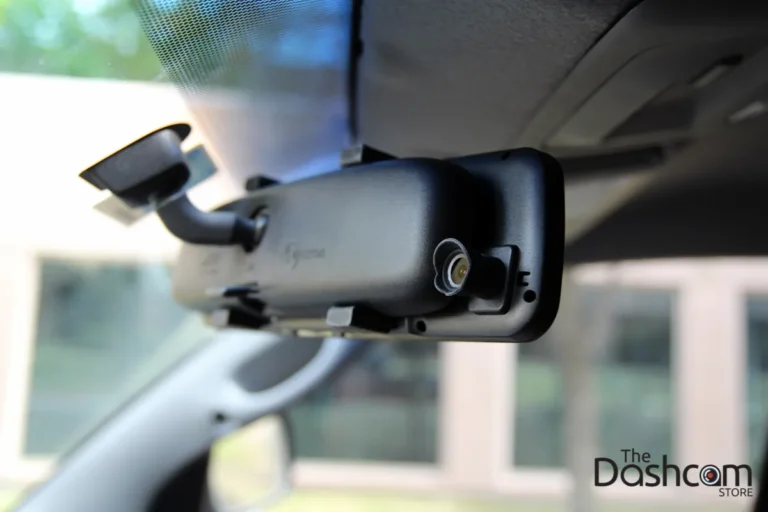
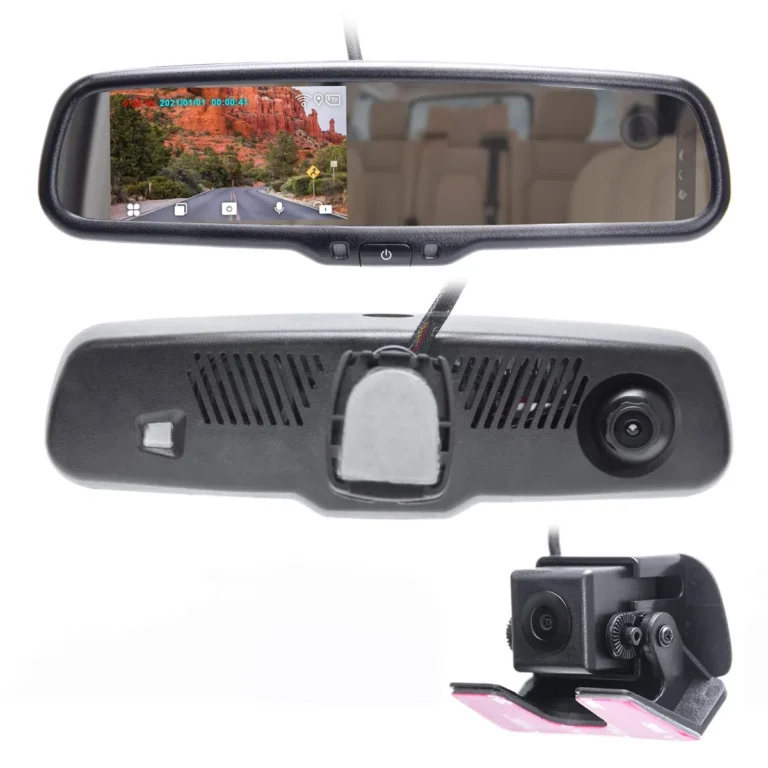
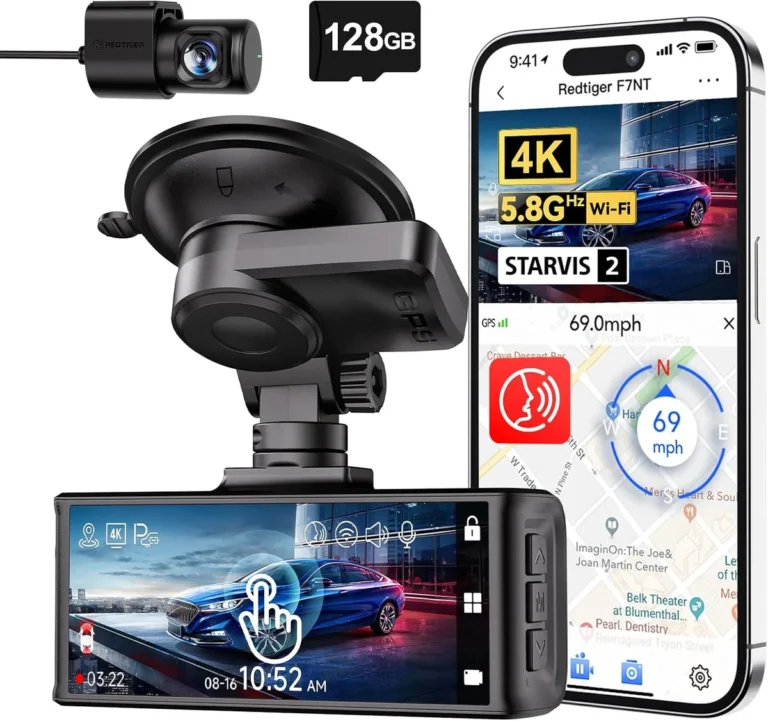
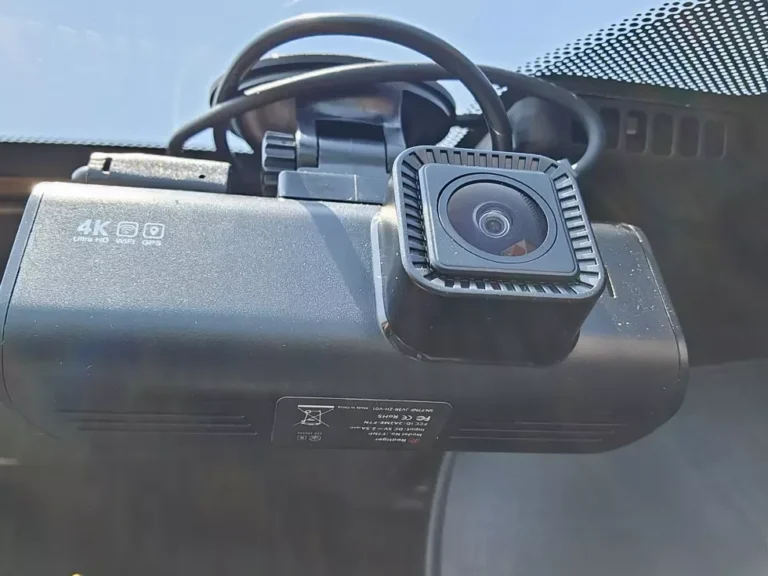
What size sd card for dash cam: The Complete Guide
Picking the wrong size SD card for a dash cam is one of those small mistakes that quietly ruins the whole point of having one. You drive around thinking every moment is safely recorded, then the one time you actually need the footage, the card is full, corrupted, or worn out. Most people only figure this out after something goes wrong.
The right card depends on three things: your dash cam's resolution, whether you use parking mode, and how long you want footage to stick around before it loops. As of 2026, the sweet spot for most drivers lands between 128GB and 256GB, but that's not the full picture. Per the SD Association's speed class standards, your card also needs the right write speed and endurance rating, or the dash cam will simply refuse to record reliably.
Quick Answer
Most dash cam owners want a 128GB or 256GB high endurance microSDXC card. 128GB fits everyday 1080p recording with about 16 to 20 hours of looped footage. 256GB is the better pick for 4K dash cams, rideshare drivers, and anyone using parking mode regularly.
Why Dash Cam Storage Isn't Like Phone Storage
A dash cam writes to its card nonstop. Every minute you drive, it overwrites old files with new ones. This constant, heavy write cycle is nothing like how a phone uses storage, where you read files far more than you write them.
Because of this, dash cam cards wear out fast. Cheaper cards built for phones or cameras often fail within months in a dash cam. The flash memory inside them isn't designed for continuous rewriting in a hot car cabin.
A typical dash cam writes somewhere between 10 and 60 megabits per second. At 1080p and 30fps, you're looking at roughly 10 to 15 Mbps. At 4K with a high bitrate codec like H.265, that jumps to 45 Mbps or higher.
That single number, your bitrate, is the foundation of every storage calculation that follows.
If your card can't keep up with the bitrate, your footage will stutter, drop frames, or corrupt. That's why dash cam makers don't just say "get any microSD card." They say "get one built for endurance and high write speed."
The Three Variables That Decide Your Card Size
There's no universal "best size" because three variables shift the answer. Once you know these, picking a card takes about ten seconds.
Variable 1: Recording Resolution and Bitrate
Higher resolution means more data per second. A 1080p dash cam at a modest 12 Mbps uses about 5.4 GB per hour of footage. The same camera at 20 Mbps uses 9 GB per hour.
Step up to 4K at 50 Mbps and you're burning through 22 GB per hour.
If your camera records at 1080p, you can get away with smaller cards. If it records at 4K or 1440p with HDR, you'll feel the storage pressure fast.
Variable 2: Loop Recording Length Preference
Loop recording means the camera writes in short segments, usually 1, 3, or 5 minutes each. When the card fills up, the oldest segment gets overwritten. The question is: how much history do you want before that overwrite happens?
Most drivers want at least 2 to 3 hours of rolling history. That way, if something happens, you can pull footage from before, during, and shortly after the event. Rideshare drivers and fleet managers often want more like 8 to 12 hours of coverage.
Variable 3: Parking Mode Usage
Parking mode keeps recording (or motion-records) when the car is off. Depending on your settings, this can double or triple the amount of data your card needs to hold. A card that comfortably stores a day's driving might only hold half a day of driving plus a night of parking surveillance.
If you use parking mode, especially buffered parking mode that records before and after motion triggers, plan for a bigger card.
How Resolution and Bitrate Drive Storage Needs
Let's make this real. Below is what manufacturers and our research into typical dash cam specs show for hourly storage at common resolutions.
| Resolution | Typical Bitrate | Storage Per Hour | Storage Per 8 Hours |
|---|---|---|---|
| 1080p (low bitrate) | 10 Mbps | ~4.5 GB | ~36 GB |
| 1080p (high bitrate / HDR) | 20 Mbps | ~9 GB | ~72 GB |
| 1440p (2K) | 25 to 30 Mbps | ~11 to 13 GB | ~88 to 104 GB |
| 4K (H.264) | 45 Mbps | ~20 GB | ~160 GB |
| 4K (H.265) | 30 Mbps | ~13 GB | ~104 GB |
These numbers assume H.264 encoding. If your dash cam uses the newer H.265 codec, file sizes shrink roughly 30 to 40 percent at the same visual quality. That alone can bump you down a card size tier.
The takeaway: if you don't know your dash cam's exact bitrate, check the manufacturer's spec sheet. A 1080p camera from 2018 might write at 8 Mbps, while a 2024 1080p model with HDR writes at 20 Mbps. Same resolution, very different storage appetite.
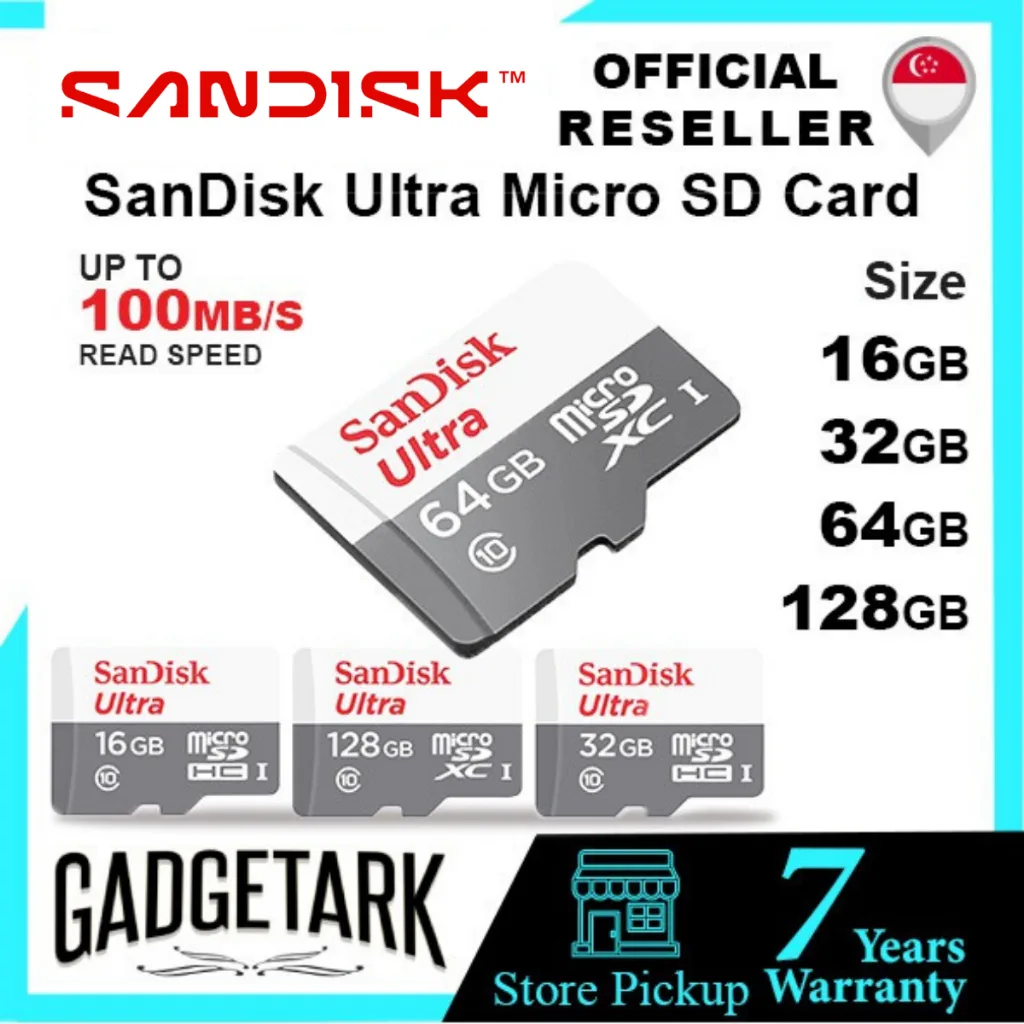
Dash Cam Storage by Resolution: Real Recording Times
Now let's match card sizes to how long they actually last in real-world dash cam use. These estimates assume a mid-range bitrate for each resolution.
| Card Size | 1080p (~15 Mbps) | 1440p (~25 Mbps) | 4K H.265 (~30 Mbps) | 4K H.264 (~50 Mbps) |
|---|---|---|---|---|
| 32GB | ~4.5 hours | ~2.7 hours | ~2.2 hours | ~1.3 hours |
| 64GB | ~9 hours | ~5.5 hours | ~4.5 hours | ~2.7 hours |
| 128GB | ~18 hours | ~11 hours | ~9 hours | ~5.5 hours |
| 256GB | ~36 hours | ~22 hours | ~18 hours | ~11 hours |
| 512GB | ~72 hours | ~44 hours | ~36 hours | ~22 hours |
A few things stand out:
- 32GB is only useful if you drive short trips and don't mind overwriting every few hours.
- 64GB works for casual 1080p users who commute less than 30 minutes each way.
- 128GB is the practical sweet spot for most 1080p and 1440p drivers.
- 256GB makes sense for 4K recording or anyone using parking mode heavily.
- 512GB and beyond are usually overkill unless you run multi-channel systems with front, rear, and cabin cameras all writing to one card.
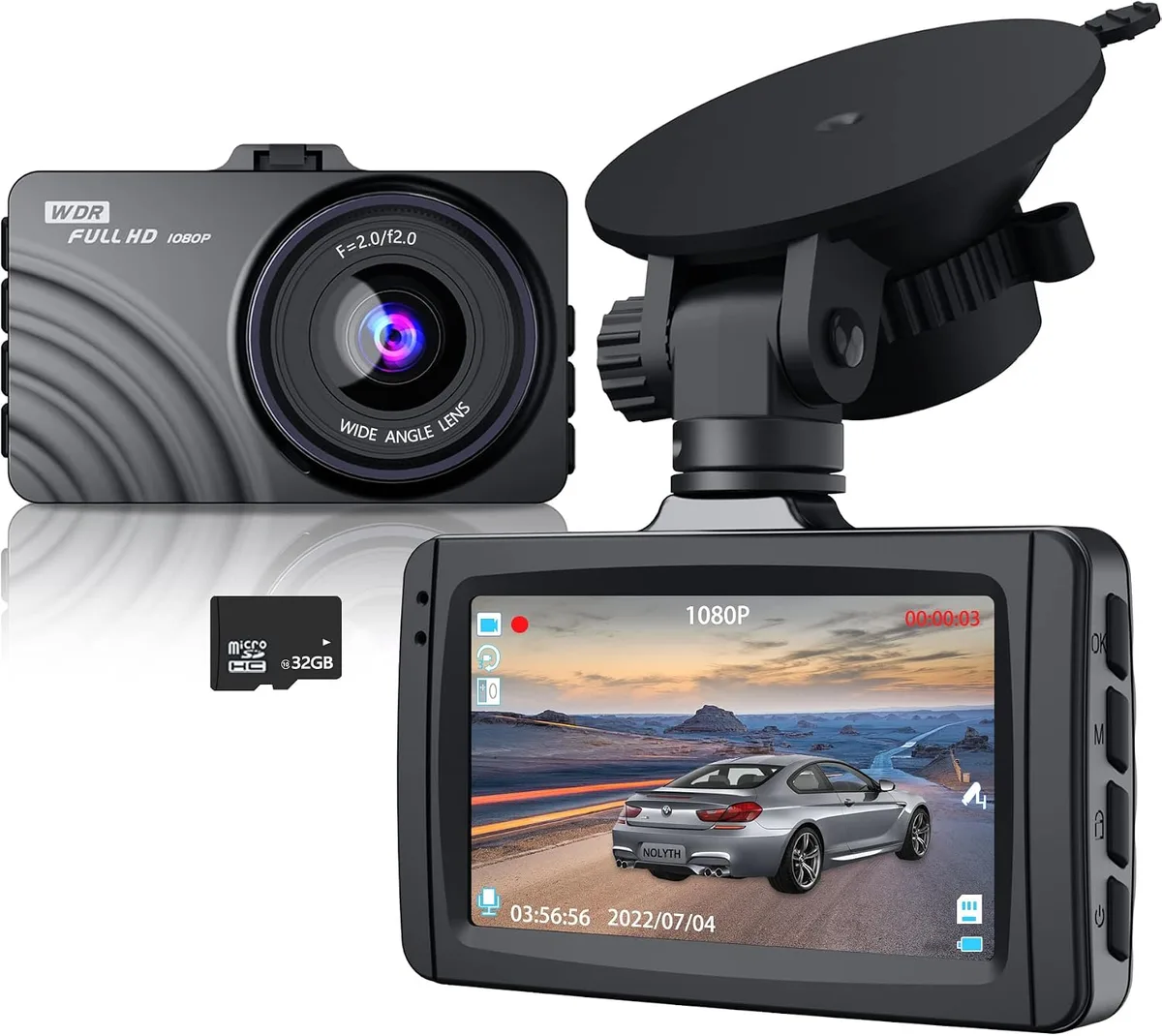
Loop Recording and How It Affects Capacity Choice
Loop recording is the feature that makes dash cams practical. Without it, the card would fill up in a day and the camera would stop recording. With it, the camera overwrites the oldest segment as soon as it needs space, so you always have the most recent footage on hand.
The trade-off is retention. A 64GB card at 1080p might only hold 4 to 5 hours of video. Once that's full, anything older than 4 hours is gone.
If you get into a fender-bender, drive home, and try to pull the footage 8 hours later, it might already be overwritten.
Most drivers want at least one full day of driving history on the card. For a 30-minute commute, that's about an hour of actual driving per weekday. A 128GB card gives you weeks of buffer at 1080p.
A 256GB card gives you months.
Loop interval also matters. Cameras that write 1-minute segments overwrite more often but make file recovery easier. Cameras writing 5-minute segments hold longer history per segment but overwrite bigger chunks when space runs out.
Most manufacturers default to 3 minutes, which is a good middle ground.
When Parking Mode Changes the Math
Parking mode flips the script. Instead of recording only while you drive, the dash cam stays partially active when the car is parked and off. There are a few flavors:
- Motion-activated: Records when something moves near the car.
- Time-lapse: Records one frame per second or every few seconds, 24/7.
- Buffered: Continuously writes to a small memory buffer, then saves a clip when motion or impact triggers it.
Time-lapse is the most storage-hungry. Recording at 1 fps still writes roughly 1 to 2 Mbps constantly. Over a 12-hour night, that adds up to 6 to 10 GB.
Buffered mode is much lighter, often using under 1 GB per night unless something happens.
If you park on busy streets or in lots with heavy foot traffic, expect parking mode to add 5 to 15 GB per day to your storage load. That single fact pushes most parking-mode users toward 256GB or larger.
Hot climates also play a role. Cars parked in direct summer sun reach cabin temperatures well above 60°C (140°F). Standard cards throttle or fail at these temps.
High endurance cards rated to 85°C or higher handle the heat without dropping frames. Aggregate user feedback on products like the SanDisk High Endurance line confirms this in real-world reports.
Recommended SD Card Size by Driver Type
Let's turn all this into a quick recommendation guide. Pick the profile closest to yours.
| Driver Type | Recommended Size | Why |
|---|---|---|
| Casual commuter, 1080p camera | 128GB | ~18 hours of looped history, room for occasional parking mode |
| Daily driver, 1440p or HDR camera | 128GB to 256GB | Higher bitrate eats space faster |
| Rideshare or taxi driver | 256GB | Long shifts, cabin recording, parking mode overnight |
| 4K dash cam owner | 256GB | 4K bitrate fills smaller cards fast |
| Fleet or commercial vehicle | 256GB to 512GB | Multi-channel setups, longer retention needs |
| Parking mode heavy user | 256GB minimum | Overnight surveillance doubles storage needs |
| Weekend driver | 64GB | Short trips, low cumulative recording |
If you're between sizes, go bigger. The price difference between 128GB and 256GB high endurance cards is small compared to the cost of missing footage you actually need.
High Endurance vs Regular Cards: Why It Matters
This is the section where the most dash cam cards die early. A regular microSD card built for a phone, drone, or action camera uses cheaper TLC NAND flash. It handles bursts of writes well but degrades quickly under constant rewriting.
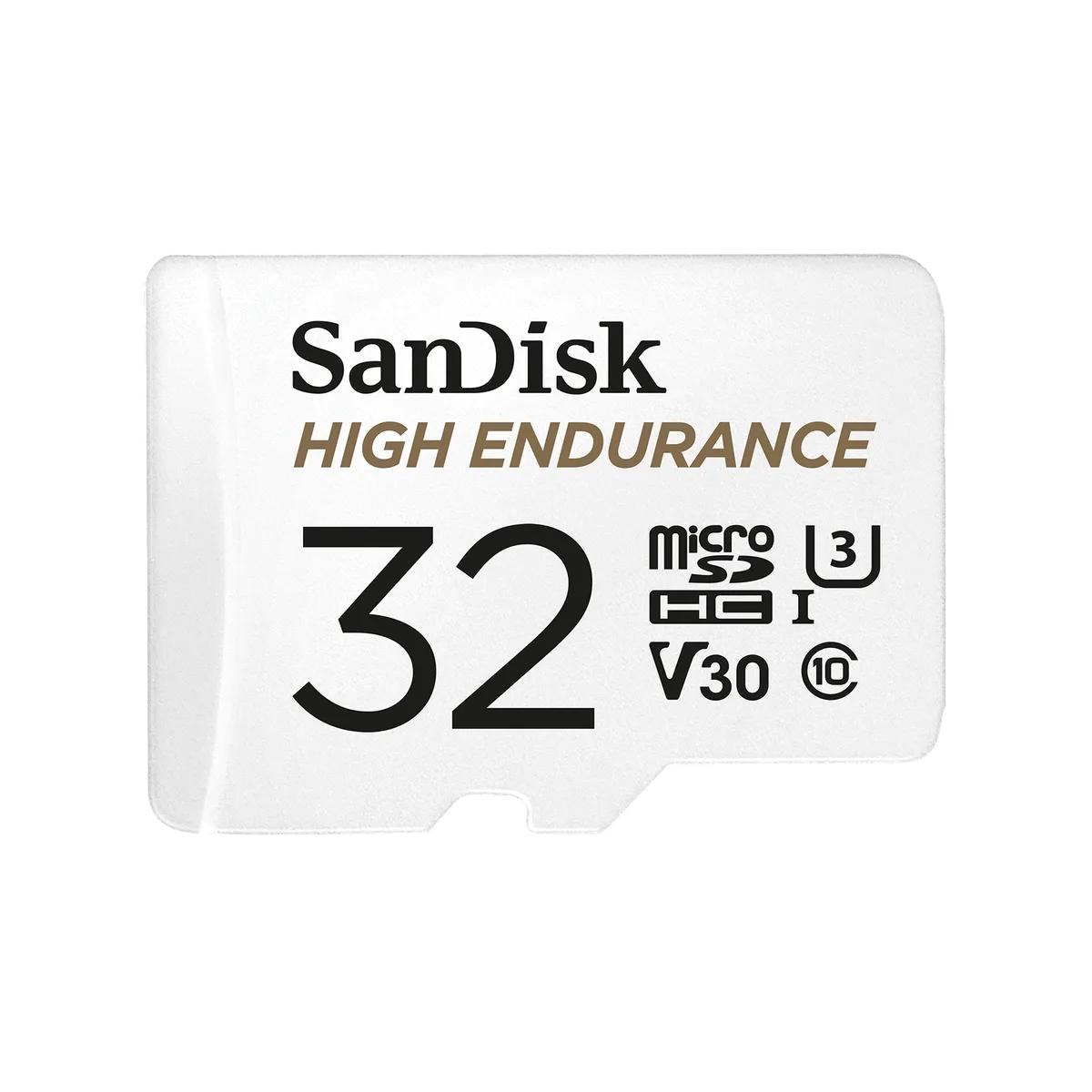
High endurance cards use MLC or pseudo-SLC (pSLC) NAND. These cells tolerate far more write cycles before failing. The rating is usually expressed in hours or terabytes written (TBW).
For example, the Samsung PRO Endurance card is rated for up to 43,800 hours of continuous recording at 1080p. The SanDisk High Endurance line is rated for 5,000 to 20,000 hours depending on capacity. Compare that to a standard card rated for a few hundred hours under dash cam workloads, and the gap is huge.
Endurance ratings matter even if you don't care about the number itself. The takeaway is simple: high endurance cards last 5 to 10 times longer in dash cams than standard cards.
The cost premium is usually 20 to 40 percent over a regular card of the same size. That buys you peace of mind and a card that won't quietly fail after six months.
Minimum Speed Class Your Dash Cam Actually Needs
Speed classes look confusing on the shelf. U1, U3, V30, A1, A2, Class 10. Here's what actually matters for a dash cam.
You need sustained write speed. Dash cams write continuously, so burst read speed (the marketing number on the front of the package) is irrelevant. Look for these minimums:
- Class 10 / U1 / V10: Minimum for 1080p recording at standard bitrates. Works for most basic dash cams.
- U3 / V30: Recommended for 1440p, HDR, and 4K recording. Most modern dash cams need at least this.
- V60 / V90: Overkill for most dash cams. Useful only if your camera writes at 60 Mbps or higher.
The A1 and A2 ratings are for app performance on phones and don't matter for dash cams. Ignore them.
One more spec worth knowing: UHS-I vs UHS-II. Almost every dash cam uses UHS-I. UHS-II cards work in UHS-I slots but run at the slower speed.
No need to pay extra for UHS-II.
Card Sizes Compared: 32GB vs 64GB vs 128GB vs 256GB vs 512GB
Here's a quick side-by-side for shoppers still on the fence.
| Card Size | Best Use Case | Typical 1080p Recording Time | Approx. Price (high endurance, USD) |
|---|---|---|---|
| 32GB | Backup or short trips | ~4 to 6 hours | $8 to $12 |
| 64GB | Light commuter use | ~9 to 12 hours | $12 to $18 |
| 128GB | Most drivers | ~18 to 24 hours | $20 to $30 |
| 256GB | Power users, 4K, parking mode | ~36 to 48 hours | $35 to $55 |
| 512GB | Multi-channel or commercial | ~72 to 96 hours | $60 to $100 |
Prices shift with sales and capacity tiers, but the relative scaling holds. Going from 128GB to 256GB roughly doubles your cost, while 512GB usually triples it. Most drivers hit diminishing returns past that point.
File System Differences: FAT32 vs exFAT and Why It Matters
The file system on your card quietly controls what your dash cam can actually do. Most cards 32GB and under ship as FAT32. Cards 64GB and larger ship as exFAT.
Both work with dash cams, but they behave differently.
FAT32 has a 4GB single-file size limit. If your camera writes long uninterrupted segments and your bitrate pushes a single clip past 4GB, the recording splits awkwardly. With H.264 at 1080p and standard bitrates, that's rarely an issue.
With high-bitrate 1440p or 4K recording, you can hit the 4GB ceiling mid-segment.
exFAT removes that 4GB ceiling. It handles large continuous files cleanly, which matters more for 4K dash cams and buffered parking mode.
Some older dash cams don't recognize exFAT and will refuse to format a 128GB card. If your camera was made before roughly 2018, check the manual. You may need to manually format the card to FAT32, which limits effective capacity to about 32GB.
In that case, upgrading the dash cam is the only real fix.
microSDHC vs microSDXC: What's Actually Different
These two labels confuse a lot of buyers. They're just naming conventions for capacity ranges.
- microSDHC: 4GB to 32GB. Uses FAT32 by default.
- microSDXC: 64GB to 2TB. Uses exFAT by default.
The bus speed (UHS-I, UHS-II) is separate from this label. A microSDXC card can be U1 or U3. A microSDHC card can also be U1 or U3.
The HC vs XC distinction only tells you the capacity tier and default file system.
For most dash cam buyers in 2026, microSDXC is the default pick. Anything 64GB and up is XC, and that's where the practical sweet spot lives.
Hot Cars, Cold Mornings, and Operating Temperature Ratings
Dash cams live in harsh environments. A windshield in July in Phoenix can hit 70°C (158°F) on the dashboard surface. A car parked overnight in Minneapolis can drop to minus 20°C (minus 4°F) before the engine warms up.
Standard microSD cards are typically rated to operate between 0°C and 70°C. That's not enough for most real driving conditions.
High endurance cards usually rate for minus 25°C to 85°C. That covers nearly every climate you'll drive in. If you live somewhere with extreme summers or cold winters, this rating matters more than capacity.
A card that overheats will throttle write speed, dropping frames in your footage. A card that can't handle cold will fail to initialize on startup. Both failure modes look the same to the driver: missing footage with no error message.
Mistakes That Kill Dash Cam SD Cards Early
A few mistakes keep showing up in user feedback. Avoid these and your card will last years, not months.
- Buying a non-endurance card to save money. Standard cards fail fast under continuous writes.
- Skipping the first-time format in the dash cam. Always format a new card inside the camera, not on a computer.
- Using a card that's too small. Constant overwriting wears out small cards faster.
- Ignoring temperature ratings. Cards not rated for high cabin temps throttle and corrupt footage in summer.
- Forgetting to replace the card. Even high endurance cards wear out. Plan to swap yours every 1 to 2 years.
- Pulling the card without powering off the camera. This can corrupt the file currently being written.
How to Format and Maintain Your Dash Cam Card
Formatting isn't optional. Dash cams write a specific file structure (usually exFAT for cards 64GB and larger, FAT32 for smaller ones). Computers often leave behind fragments and hidden files that confuse the camera.
Best practice:
- Format the card inside the dash cam using its built-in menu option. Do this every 1 to 2 months.
- If the card starts acting up, format it on a computer using the official SD card formatter tool, then format again inside the camera.
- Avoid filling the card with non-dash-cam files. The camera expects empty space to write into.
A formatted card records cleanly and lasts longer. Skipping this step is one of the top causes of "card error" messages.
Backing Up Incident Footage Before It Disappears
Once you've captured an incident, the footage isn't safe until it's copied somewhere else. Loop recording will eventually overwrite that clip. Pull important files within a day or two.
Most dash cams save flagged clips (triggered by G-sensor impact or manual save) into a protected folder. That folder doesn't get overwritten in normal loop mode. But if the card fills with too many locked files, the camera may stop recording entirely.
Quick backup habit:
- Pull the microSD card and copy flagged clips to your computer.
- Cloud-copy important incidents to Google Drive, iCloud, or OneDrive.
- Reinsert the card and confirm the camera resumes recording.
A 30-second backup habit has saved countless drivers when they actually needed the footage months later.
When to Replace Your Dash Cam SD Card
Even the best card has a lifespan. Signs it's time to swap:
- The camera shows "card error" or "please format card" repeatedly.
- Footage files are missing or corrupted.
- The camera freezes or reboots randomly while recording.
- You've hit the rated endurance hours (check the spec sheet).
For most drivers using high endurance cards, replacement every 12 to 24 months is a safe rule. Heavy users should check every 6 to 12 months. Buy the replacement before the old one gives out, so you never have a gap in coverage.
Counterfeit Cards: How to Spot a Fake Before You Lose Footage
Counterfeit microSD cards are a real and ongoing problem. Marketplaces and third-party sellers sometimes list 256GB cards at 32GB prices. The cards work briefly, then corrupt or vanish files.
Red flags:
- Price well below market average.
- Seller has thousands of identical listings with stock photos.
- Packaging has spelling errors or blurry printing.
- Card feels unusually light in hand.
Verification steps:
- Test the card with H2testw before trusting it with real footage. This free tool writes data to every sector and verifies it's all real storage.
- Check the serial number on the manufacturer's website. SanDisk, Samsung, and Kingston all offer verification tools.
- Format the card, fill it once, and verify the files all read back correctly.
Five minutes of testing beats losing footage of an actual incident.
The Cost of Skimping on a Dash Cam Card
A cheap card costs less than a good one. The math gets ugly fast when you add up what it costs to lose footage.
Consider: if you're in an accident that isn't your fault but you can't prove it without video, you're looking at insurance deductible increases, premium hikes, and potential legal fees. A high endurance 256GB card costs around $35 to $55. That single purchase buys a few years of protection worth orders of magnitude more.
Final Recommendation
Get a 128GB or 256GB high endurance microSDXC card rated U3 or V30. Match it to your dash cam's resolution and whether you run parking mode. Format it inside the camera.
Replace it every year or two. That's the whole decision.
Frequently Asked Questions
How long does a 128GB SD card last in a dash cam?
At 1080p and a typical bitrate of 15 Mbps, a 128GB card holds about 18 to 20 hours of looped footage. At 4K, that drops to roughly 5 to 9 hours. Once the card fills, the oldest footage gets overwritten automatically.
Do I need a high endurance card for a dash cam?
Yes. Regular microSD cards wear out quickly under continuous dash cam writes. High endurance cards use stronger flash memory rated for thousands of hours of constant recording.
The small price premium pays for itself in reliability.
Can I use a 512GB card in my dash cam?
Most modern dash cams support up to 256GB officially. Some recent 4K models support 512GB. Check your camera's manual or manufacturer's compatibility list before buying.
Using an unsupported large card can cause format errors or recording failures.
Why does my dash cam keep saying card error?
Common causes include using a non-endurance card, formatting the card on a computer instead of in the camera, card corruption from improper shutdowns, or a card that's reached the end of its lifespan. Format the card in the camera first. If the error returns, replace the card.
Is 64GB enough for a dash cam?
For casual 1080p users with short commutes, 64GB works. It holds about 9 to 12 hours of footage. If you drive more than an hour a day, record in 1440p or 4K, or use parking mode, step up to 128GB or 256GB.