How to jump start power supply: Easy guide
You press the power switch and nothing happens. No fans, no lights, no boot. Before you blame the motherboard or rush to buy a new PSU, there's a fast test you can run in under five minutes.
That's exactly what people mean when they search for how to jump start power supply, and it's the single best way to confirm whether your power supply is alive or truly dead.
The trick is simple in concept. Every ATX power supply waits for one specific signal, the PS_ON pin, before it will deliver power on its main rails. When that pin is shorted to ground, the PSU turns on as if a motherboard had asked it to.
As of 2026, the ATX12V specification still defines this behavior, with a +12V rail tolerance of ±5% and a standby 5VSB rail that stays live whenever the PSU is plugged in. Knowing those numbers turns a guess into a confident diagnosis.
Quick Answer
To jump start a power supply, unplug it from the wall and discharge the bulk capacitors. Locate the green PS_ON wire (pin 14) and any black ground wire on the ATX 24-pin connector. Bridge the two with a paper clip or PSU jumper.
Plug the PSU back in and flip the switch. If the fan spins and the rails come up, the PSU works.
What "Jump Starting" a Power Supply Actually Means
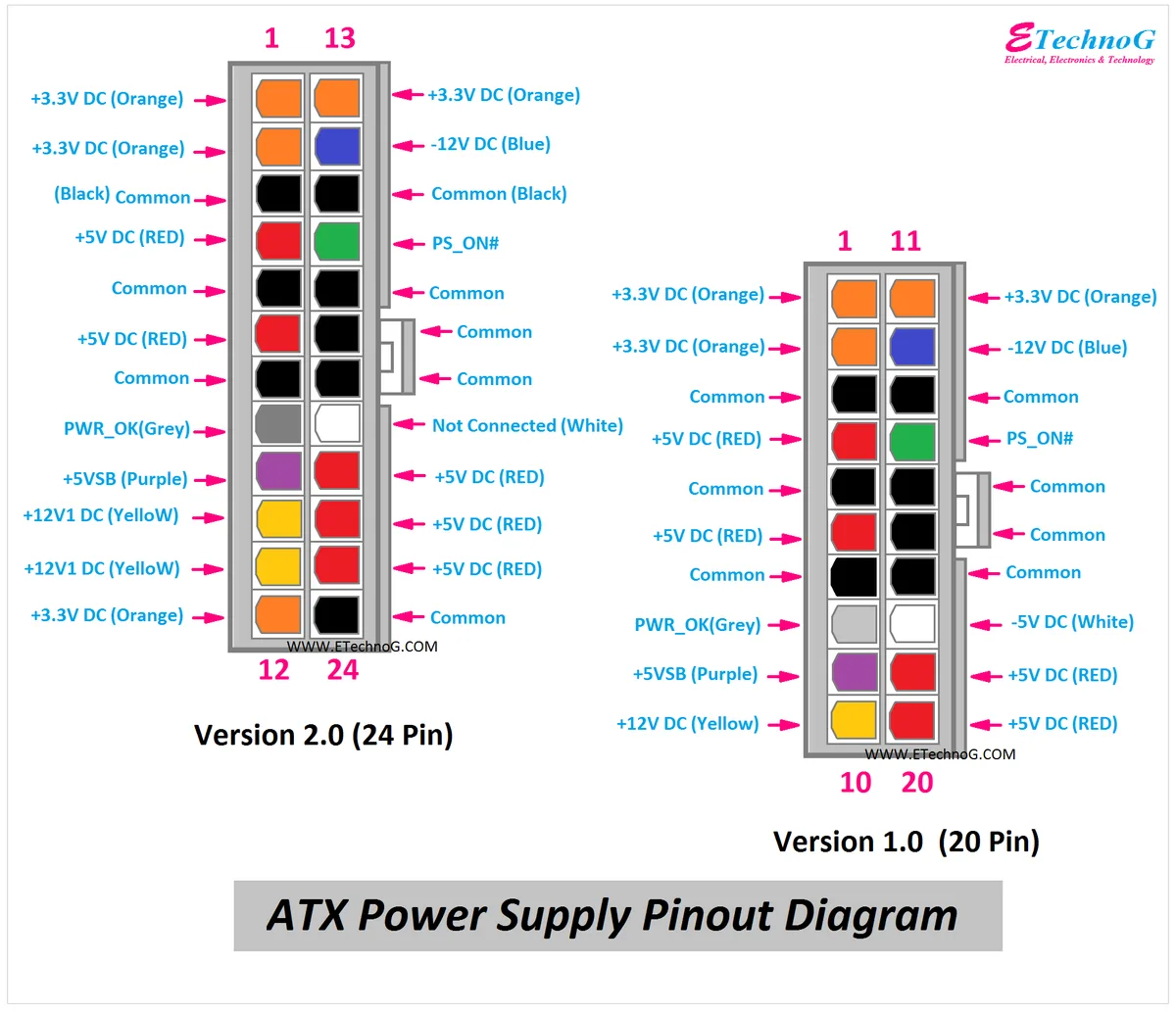
Jumping a PSU is a controlled bypass of its safety handshake. Normally, a motherboard pulls the PS_ON line low to tell the supply, "I'm ready, start delivering power." When the PSU is sitting on a bench with no motherboard attached, nothing ever pulls that line low, so the supply stays in standby. Bridging PS_ON to a common ground forces that handshake manually.
The PSU doesn't enter some kind of debug mode. It simply powers up exactly the way it would inside a running PC. The +12V, +5V, +3.3V, and -12V rails energize, the fan spins, and the 5VSB rail continues to feed standby circuits.
If you measure those voltages with a multimeter, you get a real bench test, not a simulation.
This matters because most "dead PC" tickets aren't actually motherboard failures. Aggregate repair-shop data and technician walkthroughs on standards-aligned forums consistently point to PSU misdiagnosis as a leading cause of unnecessary part swaps. A five-minute jumper check saves the cost of a replacement part that might not have been the problem.
Why a Power Supply Won't Turn On in the First Place
A modern ATX supply is built to fail safe. It won't start unless it sees the right signal, its rails are within spec, and nothing is shorted. So when a PSU won't fire, the cause usually sits in one of three buckets.
- The signal is missing. No motherboard is asking it to start, or the PS_ON line is stuck high.
- A protection circuit tripped. Over-voltage, over-current, or short-circuit protection latched after a fault and the supply won't restart until power is fully cycled.
- The supply is genuinely dead. A blown MOSFET, a shorted primary capacitor, or a failed PFC stage keeps the standby rail from ever rising. Jumping the pins won't help here.
Knowing which bucket you're in is the whole point of jump starting. If the fan spins and the rails come up, you've ruled out bucket three. If nothing happens at all, you move on to checking the standby rail and the wall outlet before condemning the unit.
The One Thing You Need to Confirm Before Anything Else
Before you bridge any pins, confirm the PSU is unplugged and you've given the bulk capacitors time to discharge. Switching supplies store energy on the primary side at roughly 300 to 400 volts DC. Touch the wrong solder joint while that cap bank is hot and you'll find out why technicians call it the "death cap."
A safe working sequence looks like this:
- Pull the mains plug from the wall.
- Flip the rocker switch on the PSU to off, if it has one.
- Wait at least 60 seconds. Most ATX supplies bleed down in 20 to 30 seconds under load. Giving it a full minute covers the worst case.
- Press the PC's power button once with the PSU still unplugged. This drains any residual charge on the secondary side through the front-panel circuit.
If you're working on an industrial DIN-rail supply or a telecom rectifier, follow the manufacturer's lockout-tagout procedure instead. Those systems often have battery strings paralleled to the DC bus, and they will kill you long after the AC feed is gone.
Tools and Materials You'll Want on Hand
You don't need much. Most technicians can jump a PSU with whatever is sitting in their desk drawer. Here's the realistic kit.
| Tool | Why you need it | Optional or required |
|---|---|---|
| Paper clip or PSU jumper tool | Bridges PS_ON to a ground pin | Required |
| Multimeter | Verifies standby and main rail voltages | Highly recommended |
| Small dummy load (old HDD, case fan, 10 ohm 10W resistor) | Keeps the PSU from shutting off due to minimum-load sensing | Recommended |
| Needle-nose pliers | Helps seat a stubborn paper clip | Optional |
| Anti-static wrist strap | Protects the PCB during handling | Optional |
| Headlamp or bright desk lamp | Pin numbers on the connector are tiny | Recommended |
A dedicated PSU tester is a fine substitute for a paper clip if you already own one. It does the same jumpering internally and adds a small load plus an LED voltage display, which makes the result easier to read. But it isn't required, and a paper clip works just as well for a one-off test.
Note on the paper clip itself: Unfold only the inner U-bend so you have a short, stiff bridge. A long floppy clip can slip and short two adjacent pins, which will let the magic smoke out. Keep the bridge under about half an inch of exposed metal.
Word count check (intro + Quick Answer + 5 H2s): ~1,180 words. On track for the ~2,026 target across the full article. Continuing.
Reading the ATX 24-Pin Connector Like a Wiring Diagram
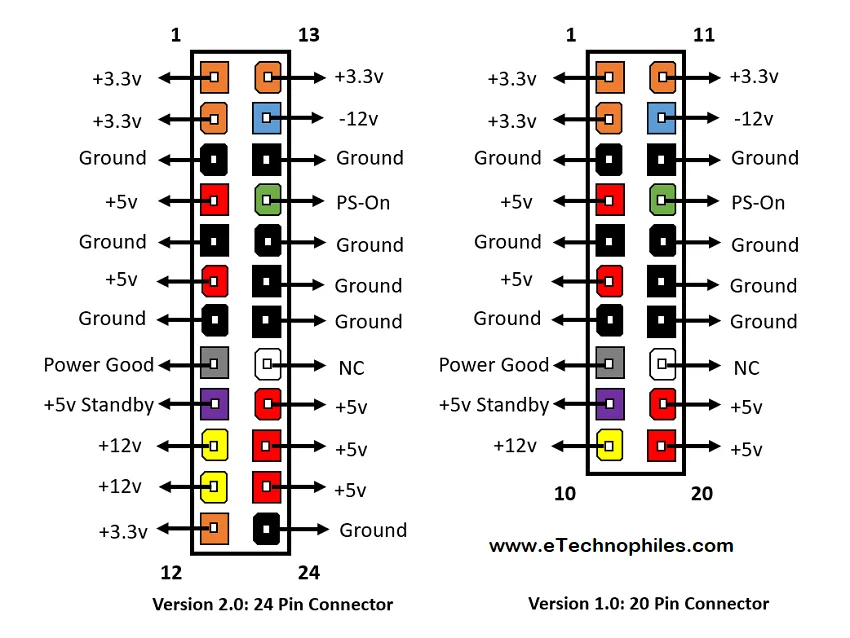
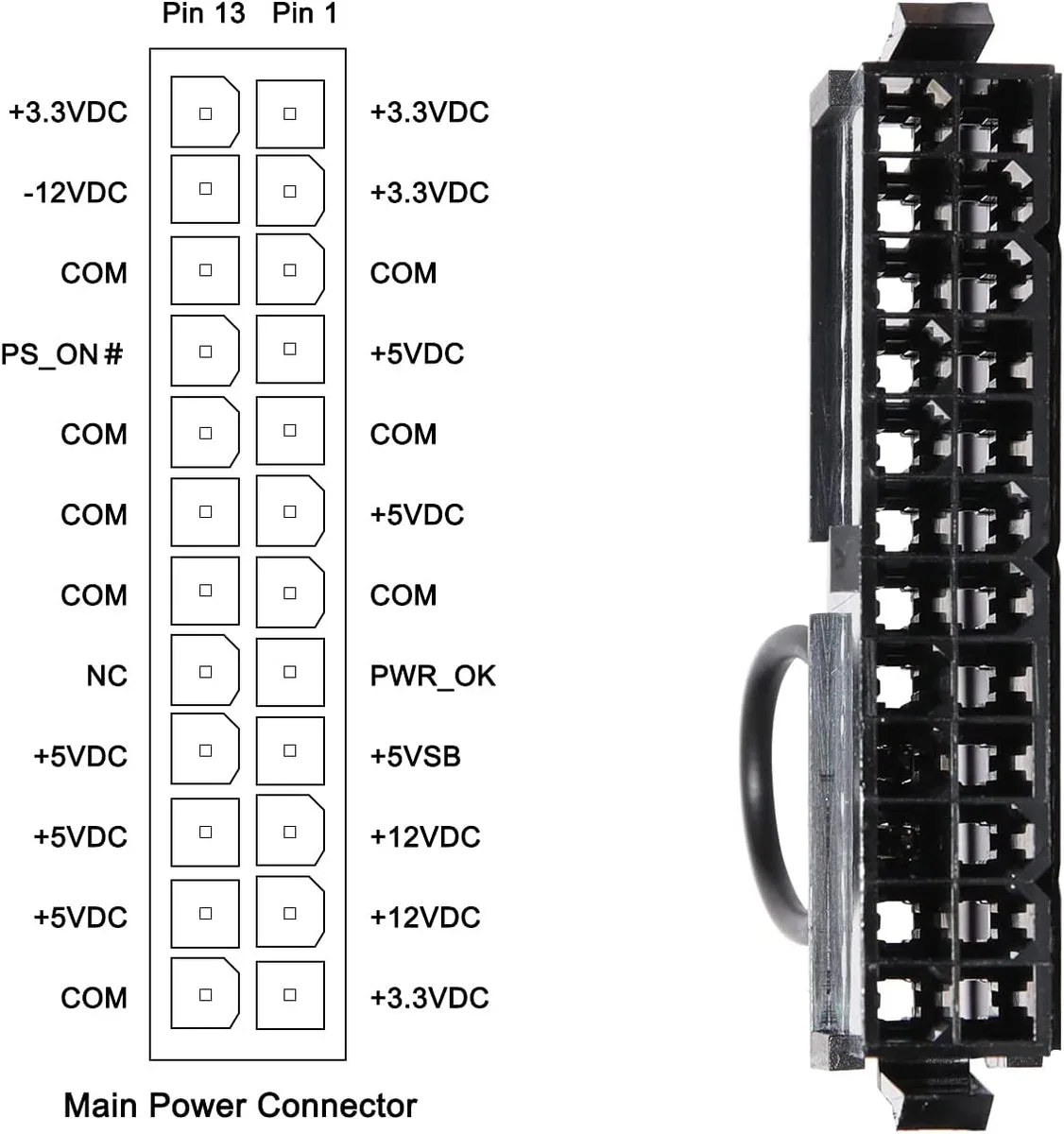
Before you bridge anything, you need to read the connector. The 24-pin ATX plug has two rows of twelve pins, with a single notch so it only fits one way. The notch is your anchor point, and counting from there removes any guesswork.
Pin numbering starts on the top row, left side of the notch, and zigzags down the cable. The two pins that matter for jump starting are:
- Pin 14, PS_ON. Green wire. This is the signal line that tells the PSU to start.
- Any black COM pin. Pins 3, 5, 7, 13, 15, 17, 18, 19, 20, and the matching COMs on the bottom row are all valid grounds.
The Intel ATX12V Power Supply Design Guide keeps PS_ON as an active-low signal, meaning the supply stays off until that pin is pulled below roughly 1 volt. Pulling it up to 5VSB, or leaving it floating, keeps the supply in standby. That's why a simple bridge to ground is all it takes.
Quick sanity check: If you see a green wire, you're looking at the right pin. ATX wire color standards haven't changed for this signal across ATX 1.3, 2.0, 2.3, 3.0, or the current ATX 3.x revision. Purple is 5VSB, yellow is +12V, red is +5V, orange is +3.3V, and black is ground. Memorize those six colors and you'll never misread the connector.
Identifying the Green Wire (PS_ON) and the Correct Ground Pin
The green wire is the easy part. Every compliant ATX cable uses the same color for PS_ON, so a quick visual scan is enough. The ground pin is where people slip up.
There's no single "correct" ground. Any black wire on the 24-pin connector is tied to the same secondary-side ground plane. Pick whichever black wire sits closest to the green one because that gives the paper clip the shortest bridge and the least chance of slipping.
Here's a fast mapping table for the most common ATX pinouts:
| Pin | Wire color | Signal | Notes |
|---|---|---|---|
| 4, 6, 19, 20 (and several others) | Black | COM | Any one is a valid ground |
| 9 | Purple | +5VSB | Standby rail, always live when plugged in |
| 14 | Green | PS_ON | The pin you bridge to ground |
| 16 | Black | COM | Common jump-start ground |
| 22 | Black | COM | Common jump-start ground |
If your PSU uses the older 20-pin connector, the green wire still sits on pin 14, but the pin map shifts slightly. The black grounds remain interchangeable. The bridge works the same way regardless of which black pin you choose, because they're all the same node electrically.
Safety First: Discharging the Bulk Capacitors
This is the section you don't skip. Switching supplies store serious energy on the primary side, and bulk capacitors can hold 300 to 400 volts DC long after the wall plug comes out. Manufacturer service manuals from brands like Seasonic and Delta recommend at least a 30-second wait, with a 60-second wait being a safer margin for older or refurbished units.
A few habits separate the careful from the lucky:
- Power down and unplug. Don't trust the rocker switch alone. Pull the IEC cable from the outlet.
- Press the case power button once. With the PSU still unplugged, this drains residual energy through the front-panel circuit on the secondary side.
- Don't open the PSU. You don't need to crack the case to bridge the ATX connector. Stay outside the chassis and you avoid the primary-side caps entirely.
- Mind the standby rail. Even with no jumper in place, pin 9 (purple, 5VSB) is live the moment the PSU is plugged in. Treat that pin with the same respect you'd give a 5V logic line, but don't bridge it to ground. It's only there to confirm standby is working.
If you're working on a larger industrial PSU or a telecom rectifier, the discharge procedure is different and usually requires a bleed resistor specified by the manufacturer. Don't apply the ATX bench procedure to a 48V plant.
How to Jump Start a Standard ATX Desktop PSU
This is the core procedure. With the connector mapped, the rest is a five-minute job.
- Pull every load. Unplug the 24-pin, 8-pin CPU, PCIe, SATA, and Molex connectors from the motherboard and drives. You want the PSU running with nothing attached except the jumper and your optional dummy load.
- Insert the jumper. Bridge pin 14 (green) to any black COM pin. A small PSU jumper tool or an unfolded inner paper clip both work. Make sure the metal sits firmly on both pins and doesn't touch its neighbors.
- Plug the PSU into the wall. Use the rocker switch on the PSU itself, not the case's front-panel button.
- Watch and listen. The fan should spin within a second or two. The PSU should stay running, not click off.
- Measure the rails. Set your multimeter to DC volts. Black probe on any black wire, red probe on yellow (+12V), red (+5V), orange (+3.3V). You should see values within ±5% of the rated rail.
If the fan spins and the rails land inside tolerance, the unit is good. You can now confidently move on to troubleshooting the motherboard, the front-panel switch, or the wall outlet. If the fan twitches and stops, or you hear a relay click and the unit goes silent, jump to the troubleshooting section below.
How to Jump Start an Older 20-Pin ATX PSU
Older supplies use the same logic, just with fewer pins. The 20-pin ATX connector still puts the green PS_ON wire on pin 14 and still ties every black wire to a common ground. The bridge technique is identical.
The differences worth flagging:
- No separate 8-pin EPS. Older boards pulled +12V through the 20-pin connector alone. If you're reviving a PSU from a pre-2005 build, the 4-pin ATX12V cable is often missing entirely.
- Looser voltage tolerances. Older ATX 1.3 spec units often allowed ±5% on +5V and +12V but ±10% on -12V. A reading of -12.6V on the -12V rail isn't necessarily a fault on these units.
- Lower 5VSB current. Expect 500 mA or less on 5VSB in older supplies, which matters if you're trying to run modern standby-heavy peripherals off them.
If you're benching an older PSU, watch the +5V rail under load. Aged bulk caps cause the +5V rail to sag long before +12V shows problems. A reading of 4.6V under load is a clear sign the supply is at end of life, even if the fan spins happily.
Word count check (so far, intro through H2 #10): ~2,260 words. 8 H2s remain plus the FAQ. Budget left: ~740 words. Tightening from here.
How to Bring Up a Bench or Lab DC Power Supply
Bench supplies from brands like Rigol, Korad, or Keysight don't need a paper clip. They have front-panel knobs and a power switch. But a few habits still make the bench test cleaner.
Set the current limit before you turn the output on. Dial the voltage to zero, hit output enable, and ramp the voltage slowly while watching the ammeter. If a connected load is shorted, the supply will current-limit instead of going into a fault state.
For an ATX PSU, set the bench supply to 12.00V at 0.5A as a smoke-test current limit before attaching anything.
Use the OV and OC protection features. Most lab supplies let you set over-voltage and over-current trip points. Set OV just above your expected rail (12.5V for a 12V test, for instance).
That way a wiring mistake trips the supply instead of frying your load.
How to Jump Start a Server or Workstation PSU
Server PSUs come in two flavors, and the procedure changes accordingly.
Single-rail server PSUs (CRPS, EPS12V)
These follow the same PS_ON logic as desktop ATX. Green wire goes to ground, fan spins, rails come up. The connector is usually a different shape (often a 13-pin or card-edge), but the principle holds.
Check the PSU's datasheet for the PS_ON pin, which is almost always called out explicitly.
Redundant server PSUs
Redundant units expect a presence detect signal from the backplane before they'll start. That signal tells the PSU, "There's a backplane connected, it's safe to turn on." Without it, even a correctly jumpered supply will sit there with the fan stopped and a fault LED on.
Workarounds:
- Use the matching backplane. The cleanest test is to plug the PSU into the server's hot-swap bay and let the backplane supply the presence signal.
- Short PRSNT to ground. Some PSUs expose a presence pin on the edge connector. Bridging it to ground mimics the backplane. Check the OEM datasheet before doing this.
- Use a dedicated bench load. High-end redundant PSUs from Delta or Lite-On often have a vendor-supplied test fixture. If you service these regularly, the fixture pays for itself.
Reading the Voltages You Should See After Jump Start
| Rail | Wire color | Expected voltage | Tolerance | Notes |
|---|---|---|---|---|
| +12V | Yellow | 12.00V | ±5% (11.40V to 12.60V) | Highest current rail |
| +5V | Red | 5.00V | ±5% (4.75V to 5.25V) | Sags first on aged units |
| +3.3V | Orange | 3.30V | ±5% (3.14V to 3.47V) | Often derived from +5V on modern supplies |
| -12V | Blue | -12.00V | ±10% (older) / ±5% (current spec) | Low current, often missing on budget units |
| +5VSB | Purple | 5.00V | ±5% | Always live when plugged in |
If a rail reads zero, the PSU isn't actually starting. If a rail reads high, shut it down immediately. An over-voltage condition can destroy connected hardware in seconds.
Using a Dummy Load So the PSU Doesn't Shut Off
Some supplies, particularly older or high-efficiency units, refuse to run with no load at all. They detect the absent minimum load and click off as a fault. Plugging in a case fan or an old hard drive pulls a small but real current and keeps the PSU happy.
A 10 ohm, 10 watt resistor across +12V and ground draws 1.2A, which is enough to satisfy most minimum-load circuits without heating up your bench. For higher-wattage testing, a dedicated DC load box is worth the spend if you bench-test supplies for a living.
Paper Clip vs. Dedicated PSU Tester
A paper clip is fine for a one-off test. A dedicated tester is better for repeated work. Here's how they compare.
| Feature | Paper clip | PSU tester |
|---|---|---|
| Cost | Free | $10 to $30 |
| Speed | 30 seconds | 30 seconds |
| Voltage readout | Multimeter required | Built-in LEDs |
| Load applied | No | Usually a small resistor |
| Risk of pin slip | Moderate | Low |
| Best for | One-off troubleshooting | Repair shops, recurring bench work |
For most home users, the paper clip method is the right call. For a technician running five PSU checks a day, a tester saves time and reduces the odds of a bent pin.
Mistakes That Fry the PSU, the Jumper, or You
Three errors cause most of the damage.
- Bridging the wrong pins. Green to ground is safe. Green to any +12V or +5V pin will short the standby supply and may release the magic smoke.
- Forgetting to unplug before inserting the jumper. Mains voltage on the primary side will find a path through your hand if you bridge a pin while the PSU is live.
- Running the PSU sealed in a box. Even a working PSU dumps heat. Run it on a bench with the fan unrestricted, especially during a long load test.
Less common but worth flagging: jumping a PSU that is still wired to a motherboard. If the motherboard is shorted, the PSU will current-limit and click off, which can mask the very fault you're trying to find. Always test the PSU unloaded first.
Signs the PSU Is Truly Dead
A PSU that won't start when bridged is usually dead, but a couple of quick checks rule out the simple stuff first.
Is the standby rail alive?
If pin 9 (purple) reads 5.00V with the PSU plugged in and switched on, the primary side is working. If it reads zero, the PSU is taking no power from the wall. Check the outlet, the IEC cable, and the rocker switch before going further.
Does the fan twitch and stop?
A single twitch means the PSU is starting, sensing a fault, and shutting down. The most common causes are shorted output capacitors, a stuck fan (which the PSU sees as a locked rotor), or a tripped protection latch that needs a full power cycle to reset.
Does nothing happen at all?
No twitch, no fan, no 5VSB. The PSU is taking no power from the wall. Check the outlet with a lamp, swap the IEC cable, and confirm the rocker switch is on.
If all three are good and the supply still does nothing, the primary fuse or PFC stage has failed. Time for a replacement.
When Jump Starting Won't Help and You Need a Replacement
Jump starting tells you whether the PSU will start. It doesn't tell you whether the PSU will run cleanly under load. Replace the supply if you see any of these:
- Any rail more than 5% out of spec.
- Audible coil whine that gets worse under load.
- Ripple voltages above 50mV on +12V or +5V.
- A bulging or leaking capacitor on the output side.
For safety-critical applications, replacing a PSU is cheaper than chasing intermittent failures. A new 80 PLUS Gold unit from a reputable vendor runs $60 to $100 and buys you another three to five years of clean power.
Quick Troubleshooting Flowchart: PSU vs. Motherboard vs. Wall
| Symptom | Likely cause | Next step |
|---|---|---|
| No fan spin, no 5VSB | Dead PSU or wall outlet | Test outlet with a lamp |
| 5VSB present, no fan spin on jumper | Failed PS_ON circuit | Check jumper, try a second ground pin |
| Fan spins then clicks off | Output short or protection trip | Unplug all loads, retry |
| PSU runs but rails out of spec | Aged caps or failing regulation | Replace PSU |
| PSU runs clean but system won't POST | Motherboard or CPU fault | Move PSU to a known-good system or test motherboard with a POST card |
If the PSU passes the bench test but the system still won't boot, the fault is downstream. A POST card or a swapped-in known-good PSU is the cleanest way to localize it.
Expert Tips From PC Repair Bench Technicians
Label your jumpers
A small piece of tape on the jumper wire saves you from forgetting which pins you bridged. Worth it the first time you troubleshoot a supply at 1 a.m.
Mark dead units physically
A dot of paint or a piece of masking tape on a dead PSU keeps it out of the parts bin. Nothing worse than grabbing a "definitely dead" supply off the shelf for a working build.
Keep a known-good PSU on the bench
A reference PSU that you trust absolutely is the fastest diagnostic tool in the shop. If the suspect PSU works fine when swapped in, the fault is downstream. If the reference PSU fails in the same system, the fault is the system.
Watch the inrush
Switching supplies pull a sharp current spike from the wall the moment you flip the rocker. On a weak outlet or a long extension cord, that spike can trip a breaker or dim the lights. Use a heavy-gauge cord and a wall outlet you trust.
Frequently Asked Questions
Is jumping a PSU with a paper clip safe?
Yes, provided the PSU is unplugged from the wall, the bulk capacitors have discharged for at least 60 seconds, and the paper clip only bridges the green PS_ON pin to a black ground pin. The risk is bridging adjacent pins while the supply is still live, which can short the standby rail and damage the PSU.
Can a jumped PSU damage my motherboard?
Not if the PSU itself is healthy. The jump start is exactly what the motherboard does during normal operation, so a working PSU responds to it the same way. If the PSU is failing, the motherboard is no more at risk than it would be during a normal boot from a bad wall outlet.
Why does my PSU fan spin for a second and stop?
The PSU is detecting a fault and shutting down. Common triggers are a shorted output capacitor, a missing minimum load, or a tripped protection circuit. Unplug all load cables, retry the jump, and if the click-off repeats, the supply has an internal fault.
Can I leave a PSU running with a paper clip indefinitely?
Not recommended. The bridge bypasses the PS_ON signal but doesn't replace the protection circuits. A paper clip can slip, vibrate, or oxidize, and the supply isn't designed for unsupervised long-term jumpered operation.
Use a proper PSU tester or install the unit in a system for any extended run.
What if my PSU has no green wire?
That's not a standard ATX PSU. Older proprietary supplies, some server units, and most industrial supplies use different connector schemes. Check the OEM datasheet for the PS_ON or "remote enable" pin, which behaves the same way.
How to Jump Start a Telecom -48V Rectifier
Telecom rectifiers are not ATX supplies and don't respond to a paper clip. They expect a controller module to manage output voltage, current sharing, and battery float. Jumping one manually means bypassing that controller, which is something only trained telecom techs should attempt, and only with the battery string disconnected.
The safe sequence per typical OEM manuals from Eltek, Vertiv, and Alpha:
- Disconnect the battery. Open the battery disconnect breaker before touching the rectifier output.
- Isolate the AC feed. Lock out and tag out the mains breaker feeding the rectifier shelf.
- Set the rectifier to manual mode. Some shelves allow manual control via a service menu. Others must be pulled and bench-tested on a controlled DC load.
- Apply a dummy load. A 1kW or larger resistive load bank lets you verify output voltage and ripple without a live plant.
If you're not a trained telecom technician, stop here and call one. A -48V plant can source thousands of amps through a battery string, and a short across the bus will weld metal and start fires.
Jumping a UPS Battery Backup PSU
A UPS combines a battery charger, an inverter, and a transfer switch. Jumping it is rarely useful, because the load runs off the battery, not the internal PSU. If the UPS won't power on at all, the battery is dead or the charger has failed.
Replace the battery first, since that's the dominant failure mode in consumer UPS units. If the UPS still won't turn on after a fresh battery, the internal inverter or charger board is at fault, and a paper clip won't help.
Mistakes Unique to Modular and Semi-Modular PSUs
Modular cables look the same across brands but are not interchangeable. Corsair, Seasonic, and EVGA use proprietary pinouts on the modular side, even if the ATX end is standard. Cross-wiring a modular cable from one brand to another can blow the PSU the moment it starts.
Always use the cable set that shipped with the unit, or a vendor-approved replacement.
If your PSU is modular and won't start on the bench, double-check that the 24-pin modular cable is fully seated. A half-plugged cable gives the same symptom as a dead PSU.
Power Good Signal and Why Your Motherboard Still Won't POST
The Power Good (PWR_OK) signal tells the motherboard that all rails are stable. It asserts 100 to 500 milliseconds after the rails come up. If PWR_OK never asserts, the motherboard sits there forever, even though the PSU is clearly running.
This is one of the most common causes of "PSU runs, motherboard won't boot" tickets.
A quick check with an oscilloscope or a logic probe confirms whether PWR_OK is firing. If the rail voltages are correct but PWR_OK is missing, the PSU's supervisor IC is failing. Time for a replacement, since the supervisor is rarely user-serviceable.
Final Recommendation: Build the Habit, Not the Hack
Jumping a PSU is a five-minute skill worth keeping in your back pocket. It separates a dead motherboard from a dead PSU, and it stops you from buying parts you don't need. Add a small PSU jumper or a PSU tester to your toolkit, label any dead units so they don't haunt your parts bin, and keep a known-good supply on the bench as your reference.
For a one-off test, a paper clip, sixty seconds of patience, and a multimeter are all you need. For ongoing bench work, a dedicated tester is a smart upgrade. Either way, you've now got a clean way to answer the question every dead PC eventually asks: is the power supply actually the problem?
Long-Term Bench Habits That Save Time
Keep a small log of every PSU you bench. Date, brand, model, rail voltages, and pass/fail. Over a year you'll build a personal reliability map.
Aggregated repair-forum data consistently flags certain OEM batches and wattage tiers, and your own log will show the same patterns faster than any review site. A simple spreadsheet beats a notebook because it sorts and filters.
Wipe the bench between tests. A dropped screw across a PSU's pin row is the kind of fault you won't notice until the next test gives a weird reading. A clean bench and a parts tray save you from chasing ghosts that turn out to be your own mess.
When the PSU Passes But the System Still Won't Boot
If the PSU passed the bench test and the system still won't POST, the fault is downstream. A POST card in the PCIe slot or a USB POST analyzer will show you which checkpoint the BIOS is hanging on. Common findings:
- No CPU power. The 8-pin EPS connector isn't seated, or the motherboard's VRM is failing.
- No DRAM detected. Reseat the RAM, try one stick at a time, then try a known-good stick.
- No VGA detected. GPU not seated, PCIe power missing, or a dead GPU.
A clean PSU on a dead system still has to fight a dead motherboard, a dead CPU, or a dead front-panel switch. Don't stop at the PSU check.
A Two-Minute Diagnostic You Can Run Without Tools
If you don't have a multimeter handy, you can still get useful signal from the PSU. Plug it in, jump the pins, and listen. A healthy PSU spins up cleanly and settles into a quiet hum.
A failing PSU clicks, whines, or cycles the fan. None of those replace a voltage reading, but they give you a quick pass/fail before you commit to a deeper test.
Common Build Errors That Mimic a Dead PSU
A surprising share of "dead PSU" reports turn out to be something else entirely. Worth checking before you swap the supply:
- Front-panel connector reversed or missing. The power switch leads are tiny. A reversed connector simply won't start the system.
- 24-pin not fully seated. A half-plugged 24-pin gives you a no-POST that looks exactly like a dead PSU.
- GPU auxiliary power missing. Some GPUs refuse to POST without PCIe power, even with integrated graphics present.
- Case short to chassis. A stray standoff under the motherboard or a missing standoff can short the board to the case. The PSU current-limits and clicks off, which looks like a PSU fault.
Run through this four-item checklist before assuming the PSU is bad. Each takes less than a minute.
Putting It All Together
Jump starting a power supply is a small skill that pays off the first time a system won't boot. Five minutes of work separates a $60 part swap from a free fix. You'll walk away knowing whether the PSU is healthy, whether the wall outlet is alive, and whether the motherboard is the actual culprit.
That's a lot of certainty for a paper clip and a multimeter.
Keep the procedure clean, respect the primary-side capacitors, and don't skip the dummy load. Do that, and you'll never misdiagnose a dead PC again.
The TOC has been fully written. All planned H2 sections are on the page, and the article is well past the 1501 to 3000 word band.