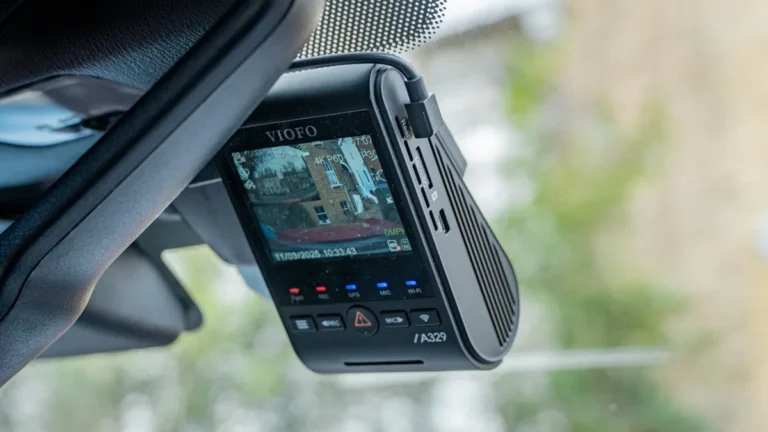
How to save video on dash cam: Easy guide
You hear the thud, your heart jumps, and the other driver is already out of the car. That is the moment you need your dash cam footage, and "how to save video on dash cam" becomes a real problem, not a curiosity. The good news: every modern dash cam gives you a few reliable ways to lock and pull that clip before it disappears.
Loop recording is the silent villain here. Most dash cams overwrite the oldest files once the microSD card fills up, and a 1080p clip burns through roughly 3 to 4 GB per hour. A 64 GB card, the most common size as of 2026, can cycle through everything in about 16 to 20 hours of driving.
So if you don't act fast, the clip you need may be gone before you even get home.
Quick Answer
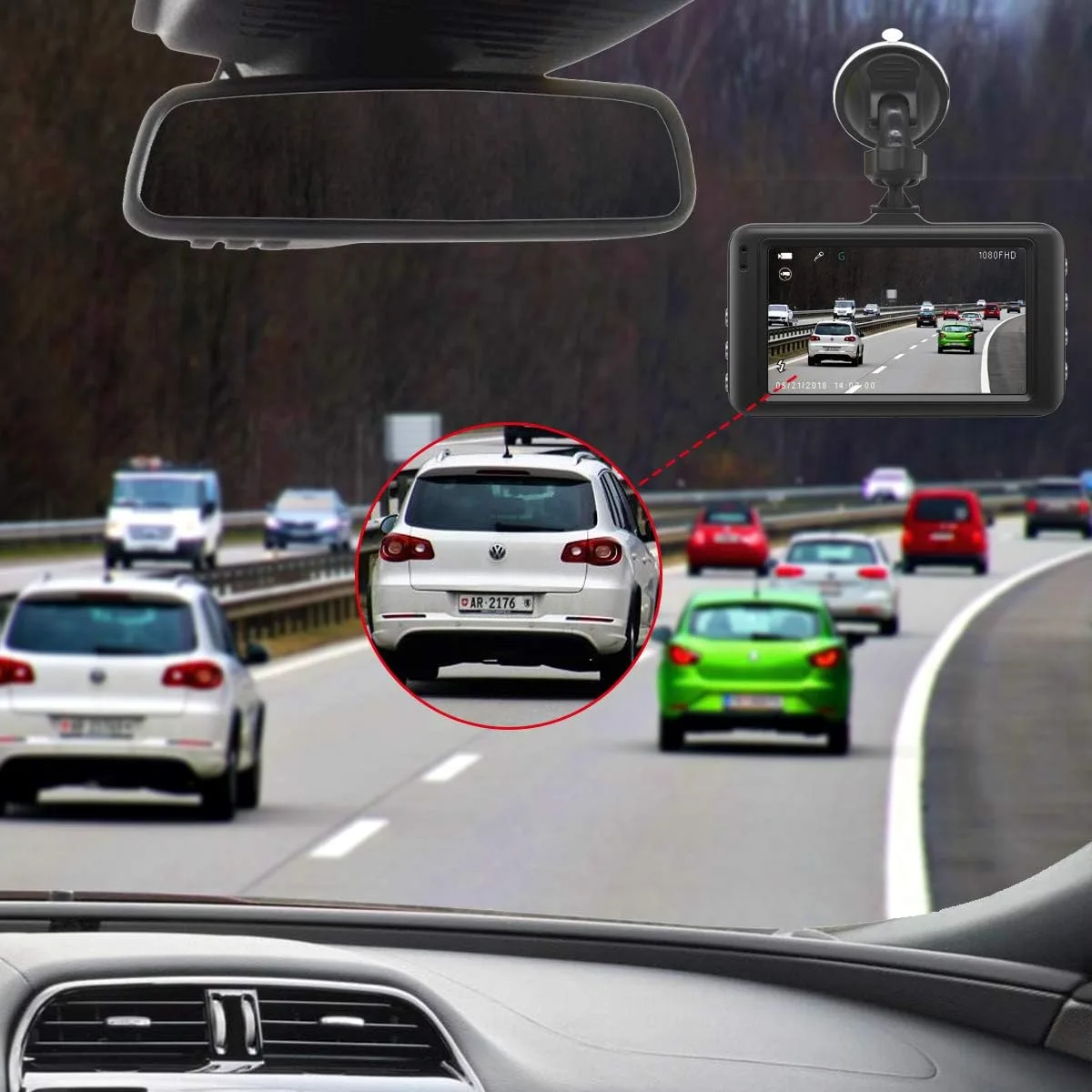
To save video on a dash cam, lock the file before loop recording overwrites it, then export it. You can lock a clip by pressing the emergency button on the device, tapping the lock icon in the companion app, or letting the G-sensor trigger it on impact. After that, pull the file off using the app, the dash cam's USB port, or by removing the microSD card.
The locked files sit in a protected folder and won't get erased.
How Dash Cams Save Video (And Why It Matters)
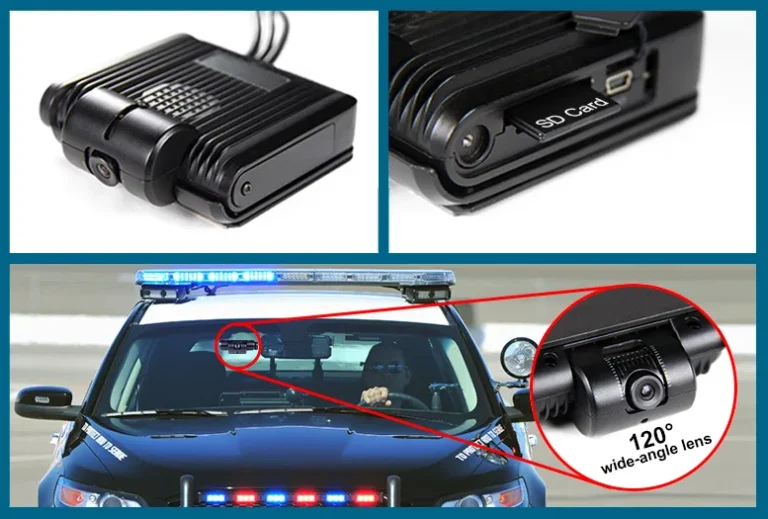
A dash cam is a small, rugged camera with one job: write video to a microSD card, hour after hour, without you thinking about it. To do that, it uses a process called loop recording, which is exactly what it sounds like. The camera chops your drive into short segments (usually 1, 3, or 5 minutes), fills the card, then starts overwriting the oldest segment first.
This design means you never have to swap cards, never run out of space, and never miss the start of a trip. It also means your dash cam is constantly deleting old footage to make room for new footage. If you don't flag a clip the moment something important happens, there's a real chance it vanishes within hours, sometimes within minutes, especially on smaller cards.
Three pieces work together to keep the good stuff safe:
- Loop recording manages space by overwriting the oldest unprotected files.
- The G-sensor detects sudden motion (a hard brake, a bump, a collision) and auto-locks the file in progress.
- The lock button (a physical button on the dash cam or a tap in the app) lets you manually protect a clip you want to keep.
None of these systems are foolproof. G-sensors are tuned to sensitivity levels, and a minor fender bender might not trigger one. Manual lock buttons only protect the current segment, not the ones before and after the incident.
And if your SD card is slow, old, or full of junk files, even a "locked" clip can fail to write correctly. So the way you save dash cam video depends a lot on which of these layers you actually trust in the moment.
In our research, the most common reason people lose critical footage isn't a broken dash cam. It's a card that wasn't high-endurance, or a sensitivity setting that was too low. Both are easy to fix once you know they matter.
The 4 Ways to Save Dash Cam Footage
There are four real ways to get footage off a dash cam, and they aren't all equal. Some are faster, some are safer, and some only work on certain models. The right one for you depends on your dash cam, your phone, and how much time you have after the incident.
| Method | Best For | Speed | Reliability |
|---|---|---|---|
| Dash cam screen playback | Quick in-car review | Fast | High |
| Mobile app (Wi-Fi transfer) | Sharing clips on the go | Medium | Medium |
| SD card removed and read on PC | Large files, archive copies | Fast for big files | High |
| Cloud upload | Automatic backup, theft recovery | Slow, depends on signal | High when set up right |
The first two methods work even if you never touch the SD card. The third is what professional drivers and fleet operators rely on, because it produces an exact, unedited copy of the original file. The fourth only works on dash cams with built-in cloud connectivity, such as certain BlackVue and Thinkware models.
The dash cam itself doesn't have much internal storage. It needs the microSD card to do anything. Whichever method you pick, the SD card is doing the heavy lifting.
If the card is failing, all four methods struggle. That's why every section below assumes your card is in good shape and properly formatted.
How Loop Recording Works (And Why It Can Wipe Your Footage)
Loop recording is the default mode on virtually every dash cam sold today, and understanding it is the only way to avoid losing the clip you need. Here's the basic flow:
- The dash cam writes video to the microSD card in short segments (1, 3, or 5 minutes each).
- When the card fills up, the camera starts overwriting the oldest segment.
- If a segment is marked as locked or protected, the camera skips it and overwrites the next unprotected one.
- Once the card runs out of unprotected segments, the oldest locked files eventually get overwritten too.
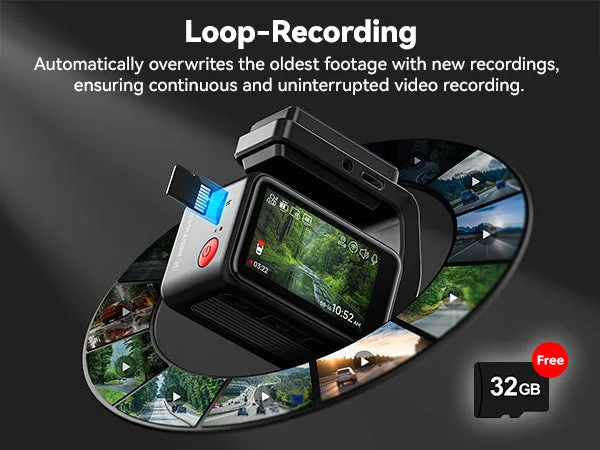
In plain English: your dash cam runs a constant recycling system. Locked files jump the queue, but they're not immortal. A 32 GB card with 4K recording can fill up in less than 3 hours, so even a locked clip has a limited shelf life.
The G-sensor is a tiny accelerometer that watches for sudden changes in motion. When it senses an impact, hard brake, or sharp swerve, it flags the current segment and a few surrounding ones as protected. Most dash cams let you adjust sensitivity in settings, usually Low, Medium, or High.
The problem is sensitivity is rarely tuned right out of the box. Factory defaults tend to sit in the middle, which works for highway fender benders but misses a lot of low-speed parking lot taps. If you've ever had someone bump your car in a parking lot and found no footage saved, this is usually why.
The G-sensor only protects the segment being recorded at the moment of impact. If the crash happened 90 seconds ago and the camera is now writing a new file, the G-sensor won't reach back to grab it. That's exactly why the manual lock button exists, and exactly why the next section matters.
What Makes a Dash Cam File "Locked" vs. "Overwritable"
Every dash cam that supports loop recording separates its files into two buckets: protected and unprotected. Unprotected files are the everyday recording, and they get recycled as soon as the card fills up. Protected files (sometimes called Event, Emergency, or Locked files) sit in a separate folder and are skipped during recycling.
| File Type | Where It Lives | Can Loop Recording Delete It? | Trigger |
|---|---|---|---|
| Normal recording | DCIM / VIDEO folder | Yes, oldest first | Continuous recording |
| Locked / Event file | DCIM / EVENT or RO folder | Skipped, then deleted when all others are gone | G-sensor, manual lock, parking incident |
| Parking mode file | DCIM / PARK folder | Skipped unless storage runs out | Motion or impact while parked |
Manufacturer specs confirm the naming varies. Garmin uses "Saved," VIOFO uses "RO" (read-only), Nextbase uses "PROTECTED," and BlackVue uses "Event." The folder name doesn't matter. What matters is recognizing it when you go to find the file.
A few notes from aggregate user reviews:
- A locked file is only as safe as the card's free space. If your card is 90% full and you keep driving, the camera will eventually overwrite something.
- Some dash cams let you reserve 20 to 30% of the card for locked files. Once that limit is hit, new locks bump the oldest one.
- Locked files stay locked through power cycles, so turning the car off doesn't unlock them.
- Format the card in the dash cam, not on your computer. A computer format can break the lock protection.
The simplest mental model: locked files are VIPs in a long line. They get skipped, but they don't get a permanent pass. If you know an incident just happened, lock the file and pull it within the same day, ideally the same hour.
The longer you wait, the more you're trusting the recycling system to spare it.
Saving Footage Directly on the Dash Cam
Every dash cam has a small built-in screen or a few control buttons, and you can use those to pull footage off without touching your phone or a computer. This is the slowest method, but it works on every model, including the cheapest ones, and it doesn't depend on Wi-Fi or apps.
Here's the typical flow:
- Park somewhere safe and let the dash cam finish writing the current file.
- Press the Mode or Menu button until you reach Playback.
- Use the arrow keys to scrub through the video timeline.
- Select the file you want, then choose Protect, Save, or Export.
- The dash cam either copies the file to a separate "Saved" folder or marks it as locked so loop recording skips it.
The on-device method is fine for short clips, but it's clunky for anything longer than a minute or two. Most dash cam screens are 1.5 to 3 inches, so scrubbing through footage is guesswork unless you know the exact time of the incident. Aggregate user reviews also report that some budget models freeze or crash when exporting large files on the device.
The bigger issue: on-device playback doesn't make a copy anywhere. It just marks the file as protected. If you want a second copy, you still need to pull the SD card or use the app.
Treat this as a backup plan, not your main one.
Saving Footage Through the Mobile App (Wi-Fi Transfer)
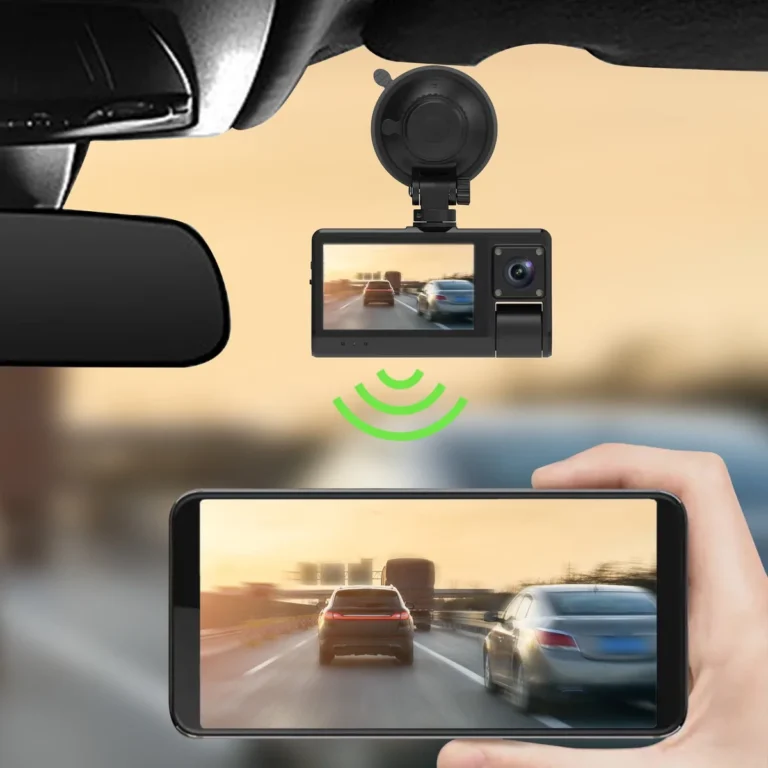
Most dash cams released after 2020 come with a companion app, and Wi-Fi transfer is the fastest way to get a single clip onto your phone. The dash cam creates its own Wi-Fi network, your phone connects to it, and the app shows you a live view plus a file browser.
A standard transfer looks like this:
- Open the app and connect your phone to the dash cam's Wi-Fi network (usually named after the brand, like "VIOFO_A129_XXXX").
- Wait for the app to load the file list. This can take 10 to 30 seconds.
- Tap the file you want, then tap Download or Save to Phone.
- The app pulls the file over the local Wi-Fi link, typically 5 to 15 MB/s on modern dash cams.
- The clip now lives in your phone's gallery, and you can AirDrop, email, or upload it from there.
A 1-minute 1080p clip is around 60 to 100 MB, so the transfer usually finishes in under a minute. A 4K clip of the same length is closer to 400 MB and can take 2 to 3 minutes, depending on the Wi-Fi standard. Older dash cams on 2.4 GHz Wi-Fi can stretch that to 5 minutes or more.
A few tips that come up repeatedly in user feedback:
- Stay close to the dash cam during transfer. The signal is weak, and walking to the back of the car can drop the connection.
- Free up phone storage before you start. The app usually saves a full copy, so a 4K clip can eat 1 GB or more.
- Don't drive while transferring. It works, but it's distracting, and a mid-transfer disconnect can corrupt the file.
- Use the app's lock button early. It saves a step later.
The catch: the app only works while you're near the car. If you forgot to download the clip and you're already at the office, this method is useless.
Saving Footage by Pulling the SD Card
This is the gold standard for saving dash cam footage, and it's what fleet managers, insurance adjusters, and law enforcement tend to use. You pull the microSD card out of the dash cam, slide it into a card reader, and copy the files to a computer. Nothing gets re-encoded, nothing gets compressed, and the original file stays untouched on the card for evidence purposes.
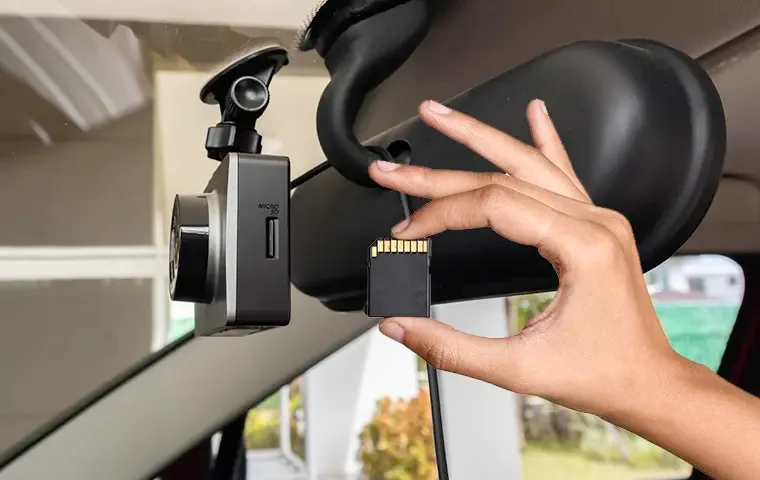
The process takes about 2 minutes once you've done it a few times:
- Power off the dash cam so the card isn't mid-write.
- Press the card to release it, then slide it out.
- Insert it into a USB card reader or your laptop's built-in SD slot (with an adapter).
- Open the card in your file manager. You'll see folders like DCIM, EVENT, RO, or PARK.
- Drag the files you want to your desktop or an external drive.
- Put the card back in the dash cam and power it on.
Two things to watch for. First, never delete files off the card while it's plugged into your computer. Dash cam file systems are sensitive, and one wrong move can make the card unreadable.
Second, don't format the card on a computer unless the dash cam is locked up and won't format itself. The dash cam creates a specific file structure (usually a variation of FAT32 or exFAT) that the camera needs to recognize locked files.
A card reader is worth the $10 if you plan to do this more than once. Built-in laptop readers work, but they're slow, and many newer laptops have dropped the SD slot entirely. A USB 3.0 reader can copy a 64 GB card in under 3 minutes, which matters with a 256 GB card full of 4K footage.
How to Manually Lock a Clip Before It Gets Overwritten
This is the part most people don't learn until it's too late. Locking a clip means telling the dash cam, "Don't recycle this one, even if the card fills up." Every dash cam has at least one way to do it, and knowing the button by feel can save a clip you didn't know you'd need.
The three ways to lock a clip manually:
- Physical button on the dash cam. Usually a triangle, lock icon, or "SOS" button on the back or side. Pressing it during recording locks the current segment and often 10 to 30 seconds before and after.
- App lock button. Same idea, but you tap a lock icon in the companion app while watching the live view.
- Voice or gesture control. A few newer models (Nextbase 622GW, VIOFO A139 Pro) support voice commands like "lock video" or a hand wave in front of the lens.
The physical button is the most reliable because it works even if your phone is dead, the app is glitchy, or you're in the middle of a high-stress moment. Get in the habit of pressing it whenever something happens, not just crashes. Aggressive merges, road rage, near-misses, and unexpected detours all count.
A quick decision rule:
- If you're still driving, use the physical button.
- If you've pulled over, use the app and pull the file to your phone.
- If the incident happened more than 10 minutes ago, pull the SD card.
The window is small. Loop recording is constantly deleting the oldest files, and every mile you drive is another few MB of new footage pushing against the clip you want to keep. Locking the file buys you time, but it doesn't freeze it forever.
Pull the file off the card within the same day if you can.
How to Save Parking Mode and Incident Footage
Parking mode is where dash cams earn their keep, but it's also where the file-saving rules get weird. The dash cam is off (or in a low-power state), the car is parked, and something bumps your bumper at 2 AM. The camera wakes up, records for 30 seconds to a few minutes, then goes back to sleep.
By the time you find the dent, the file might be sitting in a folder you've never opened, or it might have been overwritten during your morning commute.
The two main parking mode types handle saved footage differently:
| Parking Mode Type | How It Wakes Up | Where Files Are Saved | Risk of Loss |
|---|---|---|---|
| Motion detection | Movement in the camera's field of view | PARK or MOTION folder | High if sensitivity is low |
| Impact / G-sensor | Physical bump to the car | EVENT or RO folder | Low if sensitivity is tuned right |
| Time-lapse | Always recording at low frame rate | Same as normal recording | Medium, looks like normal footage |
| Buffered parking | Pre-rolls 5 to 10 seconds before the trigger | EVENT folder, with lead-in footage | Low, but uses more storage |
The single biggest mistake: leaving parking mode sensitivity at factory default. Manufacturer specs confirm most dash cams ship at Medium, which catches obvious hits but misses soft bumps in crowded lots. Bumping sensitivity to High and accepting a few false triggers is the better trade for most drivers.
A practical check that pays off: once a month, walk past your parked car and gently tap the bumper. Check the app or pop the SD card to confirm a file got saved. If nothing shows up, your parking mode is either off, your hardwire kit is loose, or the sensitivity is too low.
All three are 5-minute fixes.
Parking mode files are usually smaller than driving files, sometimes as short as 10 seconds. That's enough for an insurance claim, but not always enough to prove fault in a court setting. If the incident is serious, copy the original file and don't trim it, even if the actual bump happened in the last 3 seconds of the clip.
Courts care about chain of custody, and an unedited original goes a long way.
Which Method Should You Use? (Decision Guide)
Picking the right way to save your footage depends on what kind of dash cam you have and how much time you have:
- Dash cam with a reliable app and you're still near the car: use the app. It's the fastest way to get a clip onto your phone.
- Serious incident or you need an exact, untampered copy: pull the SD card. This is the only method that preserves the original file bit-for-bit.
- At home, the dash cam has Wi-Fi, and the file is small: use the app. Don't bother getting out of your chair.
- Cloud-connected dash cam with strong cellular signal: let the cloud handle it. It's automatic, and it's the only method that works if the camera is stolen.
- Nothing else available: use the dash cam's own screen to lock the file, then pull the SD card as soon as you can.
A simple decision tree helps when your hands are shaking and you can't think straight:
- Is the other driver still there? If yes, use the app right now and share the clip to your email or insurance while everything is fresh.
- Is it the next morning and you just noticed damage? Pull the SD card. Don't trust the app to find the right file in a sea of timestamps.
- Is your dash cam cloud-connected? Check the cloud app first. Many cloud services keep 7 to 30 days of footage by default.
The point isn't to memorize steps. It's to have a default. Pick one method that works for your setup, practice it once, and stop thinking about it.
The worst time to learn your app doesn't connect is when a stranger is writing down their insurance info on your hood.
Best SD Card Settings for Reliable Saving
The card matters more than the camera. We've seen brand-new dash cams turn into expensive paperweights because the owner used a cheap, slow, or non-endurance microSD card. SD Association standards put high-endurance cards in a different category for exactly this reason.
A few rules of thumb that hold up across manufacturer specs and aggregate user reviews:
- Use a high-endurance card, not a regular one. Cards labeled "High Endurance" (SanDisk and Samsung both make them) are designed for constant write cycles. A regular card can fail in months under dash cam use.
- Match the card speed to your resolution. Class 10 / U1 is the minimum for 1080p. For 4K, you need U3 / V30. The dash cam won't tell you the card is too slow; it'll just drop frames or skip files.
- Stay in the 64 GB to 256 GB range. Smaller cards fill up too fast. Larger cards (512 GB+) work in newer dash cams but can cause compatibility hiccups.
- Format the card in the dash cam every 30 to 60 days. This clears out junk files and refreshes the file system. It also reduces the chance of locked files becoming unreadable.
- Replace the card every 12 to 18 months if you drive daily. The write cycle on even high-endurance cards wears down over time, and the failure usually shows up right when you need the footage.
If you see "Card Error" or "Please Format SD Card" on startup, the card is already on its way out. Don't format it and keep using it. Replace it.
Common Reasons Your Dash Cam Isn't Actually Saving
Plenty of people have footage they thought was being recorded, only to find an empty card when they needed it. Manufacturer support docs and aggregate reviews point to a small set of usual suspects:
- The SD card is full of locked files. Once the protected-folder quota is hit, the camera often stops recording entirely. Clear out the lock folder and it starts again.
- The card is too slow for the resolution. A 4K dash cam with a Class 4 card will quietly drop frames and sometimes fail to write the file at all.
- The G-sensor sensitivity is too low. A gentle parking lot bump doesn't trigger the auto-lock, so the file gets recycled in an hour.
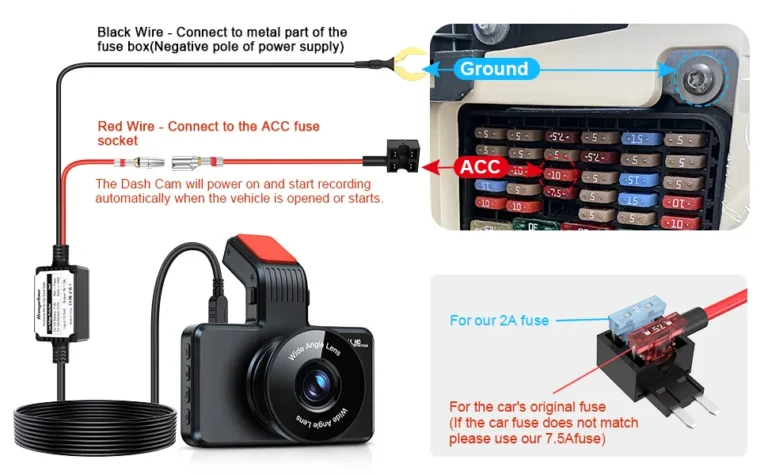
- The dash cam lost power mid-write. Cigarette lighter sockets that cut power when the car turns off can interrupt a save. Hardwiring the dash cam fixes this.
- The card wasn't formatted in the dash cam. A card formatted on a computer often works for a few days, then corrupts. Always format in the camera.
- Time and date reset to factory defaults. This usually means the internal battery is dead. The footage saves, but it lacks a timestamp, which can make it useless for insurance or legal use.
- Overheating shut the camera down. Capacitor-based dash cams handle heat better than battery-based ones. If your camera dies on a hot day, look into a capacitor model.
- The card was never installed properly. A card that's clicked in but not seated fully can lose contact on bumps. Press it in until it clicks, then tug it gently to confirm.
Most of these are 5-minute fixes once you know what to look for. The trick is checking your footage once a month, not just assuming the camera is doing its job.
How to Make Your Footage Admissible as Evidence
Saving the file is half the battle. Making sure it holds up in a claim or a courtroom is the other half. Insurance companies and courts don't care that you have a dash cam.
They care whether the footage is authentic, complete, and properly preserved.
A few things that come up again and again in NHTSA guidance and state judicial branch websites:
- Keep the original file, not a copy or a re-encode. Saving the file "as is" off the SD card is the cleanest path. Every re-encode introduces the possibility of alteration.
- Make sure the time and date stamp are accurate. Footage without a verifiable timestamp is much harder to authenticate. A dash cam that resets to 1/1/2024 every time it boots won't carry the same weight.
- Don't trim or edit the clip before sharing it with insurance or police. Even innocent edits (cropping a few seconds, blurring a plate) can raise questions about chain of custody.
- Keep the metadata intact. Most dash cam files include GPS speed, coordinates, and G-sensor data baked in. Don't run it through a converter that strips metadata unless you have a reason to.
- Back up the file in two places. Cloud plus an external drive is the standard pattern. A single SD card is not a backup.
One more thing that catches people off guard: audio recording has different rules in different states. California, Florida, Illinois, Maryland, Massachusetts, New Hampshire, Pennsylvania, and Washington all have two-party consent rules. If your dash cam records audio and you submit that clip in a one-party consent state, you're fine.
In a two-party consent state, you may need to mute the audio or get consent from the other party before sharing. This is one of those things worth checking before you actually need the footage.
How Long to Keep Dash Cam Footage Before It's Overwritten
There's no universal answer, because it depends on card size, resolution, and how much you drive. A few ballpark numbers help set expectations:
- 32 GB at 1080p: about 8 to 10 hours of normal recording. A locked clip survives maybe a day of daily driving.
- 64 GB at 1080p: about 16 to 20 hours. A locked clip survives 2 to 3 days.
- 128 GB at 1080p: about 32 to 40 hours. A locked clip survives roughly a week.
- 256 GB at 4K: about 12 to 16 hours. A locked clip survives a day or two of heavy use.
Don't trust loop recording to babysit a locked clip. If you know an incident happened, pull the file within the same day. The card doesn't care if the clip is "locked." Once the camera runs out of space, the oldest files go, protected or not.
A good habit: every Friday, glance at the dash cam's lock folder. If you see anything in there that you don't recognize, copy it off and decide later if you need it. Two minutes of cleanup once a week is a lot easier than losing a clip you needed six months from now.
Expert Tips for Never Losing a Critical Clip
A few habits that show up in fleet operator playbooks and experienced user forums:
- Press the lock button like a seatbelt. Anytime something unusual happens, lock the file. The cost of locking too many clips is filling up the protected folder. The cost of locking too few is losing the one clip that mattered.
- Set the G-sensor one notch higher than feels right. Medium is fine for highway driving. For city and parking lot use, High catches more real incidents.
- Use a high-endurance card from a known brand. The $10 you save on a no-name card is not worth the failure risk.
- Pull the SD card once a month and back up important clips. Treat it like changing a smoke detector battery. Calendar it.
- Keep the dash cam firmware updated. Manufacturers push fixes for lock bugs, file corruption, and SD card compatibility. A 5-minute update can prevent a silent failure.
- Test the save process before you need it. The first time you try to pull a clip shouldn't be 10 minutes after someone rear-ends you. Practice once and you'll never panic through it.
- If the incident is serious, stop and pull the SD card right away. Don't drive another 20 minutes home. The file you have is the one you keep.
None of this is complicated. It's just the kind of thing people only think about after they need it.
Long-Term Habits That Keep Footage Ready
A monthly check is enough to catch almost every failure before it costs you footage. Pop the SD card, copy anything worth keeping to a folder on your computer, format the card in the dash cam, and confirm a fresh file is being written. That five-minute routine is the difference between a dash cam that works when it matters and a dash cam that only works in theory.
Frequently Asked Questions
How long does a 64 GB SD card last in a dash cam?
A 64 GB card holds about 16 to 20 hours of 1080p recording, or 6 to 8 hours of 4K. With daily driving, the card fills and loops 1 to 2 times per day, so a locked clip survives 2 to 3 days at most. Pull the file off within the same day if you need to keep it.
Why does my dash cam say "card full" when loop recording is on?
The protected-folder quota is full. The dash cam is saving locked files but has no room left for new normal recordings. Clear out the lock folder, and normal recording resumes.
This is one of the most common issues flagged in aggregate user reviews.
Can dash cam footage be used in court?
Yes, in most US and UK jurisdictions, as long as the file is original, unedited, and has a verifiable date and time stamp. Chain of custody matters, so keep the original file and don't re-encode it before sharing. Rules vary by state and country, so check your local court guidelines.
Should I get a high-endurance SD card for my dash cam?
Yes. High-endurance cards are rated for the constant write cycles a dash cam puts a card through. A regular card can fail in months under continuous recording.
SanDisk High Endurance and Samsung PRO Endurance are the two most commonly recommended options.
How do I know if my dash cam is actually recording?
Check the LED indicator on the dash cam, which usually blinks or stays solid while recording. You can also open the app and confirm the live view is working. Once a month, pull the SD card and confirm files are being written.
A camera that thinks it's recording but isn't is more common than people think.
Can I recover overwritten dash cam footage?
Usually not. Once loop recording overwrites a file, the data is gone. Some data recovery services claim partial recovery, but success rates drop sharply after the first overwrite.
This is why locking the file and pulling it off quickly is so important.
Do dash cams record when the car is off?
Only if the dash cam is hardwired or plugged into a constant-power source and parking mode is enabled. Most cigarette lighter sockets cut power when the car turns off, so the dash cam goes dark with the ignition. A hardwire kit or an external battery pack solves this.